
How to Set Global Proxy on Windows System
Most proxy IPs require 【Global Internet Environment】 access, but sometimes buying a VPN doesn't work because most VPNs only work for regular browsers. They are not true global proxies.
Below is how to use Proxifier (Click here to download) to make VPN a true global proxy.
Operation Steps
Step 1: Find the VPN's SOCKS5 Port
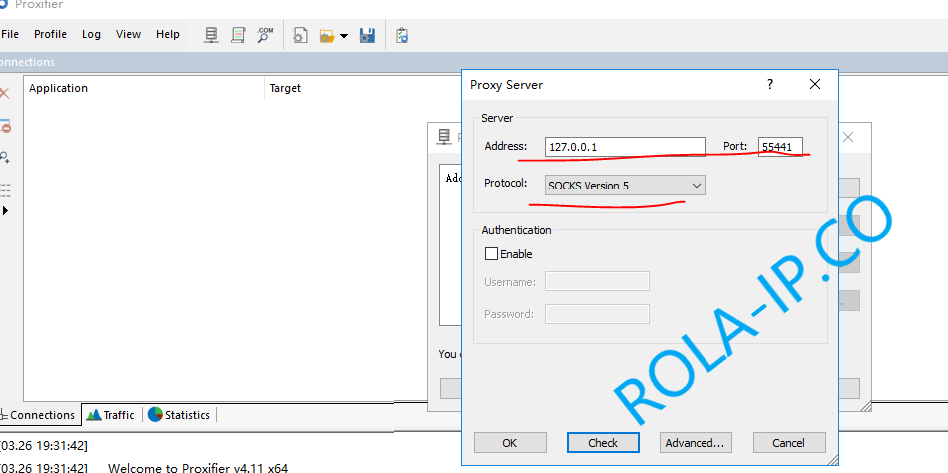
Find the local SOCKS5 port opened by the VPN. It is marked in the VPN software. Here we assume the port is: 55441, the SOCKS5 address is: 127.0.0.1:55441
Step 2: Add SOCKS5 Proxy Server
Add SOCKS5 proxy server in Proxifier.
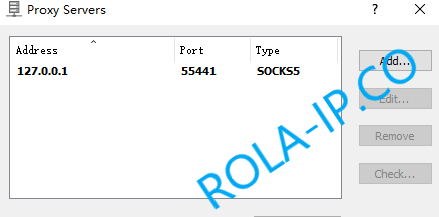
After saving:
Step 3: Add Proxy Rules
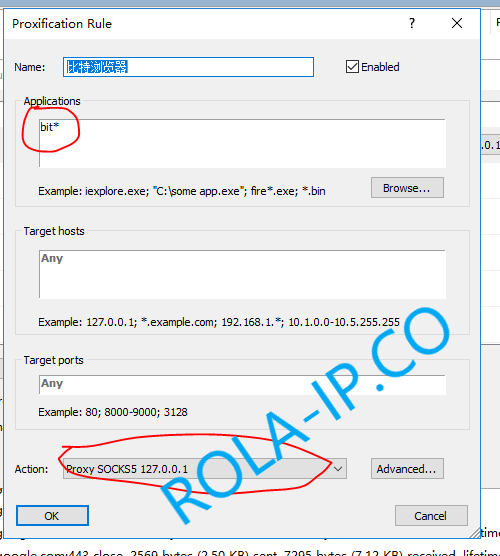
Add proxy rules to let programs that meet the conditions go through VPN proxy.
Here we use 【BitBrowser】 program as an example. If you want BitBrowser program to go through VPN proxy, first we need to know the window process name of BitBrowser. In the BitBrowser installation directory: resources\Chrome-bin\BitBrowser.exe. The window process name is: BitBrowser.exe. Configure bit* in Proxifier's Applications, which means matching all processes starting with the bit character.
Step 4: Set Default Rule
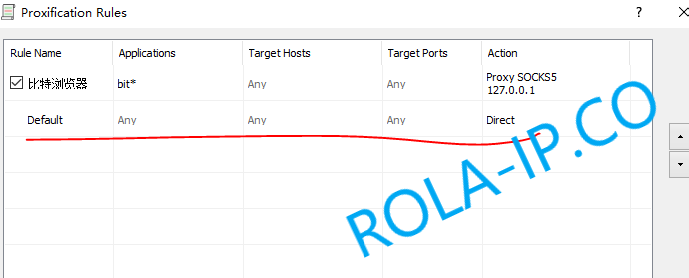
Set the Default rule to Direct. This way, processes that don't match bit* will use local network.
Step 5: Configuration Complete
The configured 【BitBrowser】 process has been set up for global proxy successfully! For other programs that want to use global proxy, configure them in Proxifier as in Step 3.