
Mobile IP
Mobile IP proxies come from real mobile carrier networks and carry mobile network characteristics. They are suitable for mobile-first workflows and high-risk scenarios, but resources are usually more limited, so country selection and session strategy should be used carefully.
Best For
- Mobile app testing and mobile webpage checks
- High-risk account registration, login, and account warm-up
- Workflows that require mobile carrier network identity
- Social media, e-commerce, and advertising scenarios requiring stronger trust
Characteristics
- Mobile network identity: closer to phone-user traffic.
- Higher trust: suitable for workflows with stricter risk control.
- Good for mobile flows: app login, mobile page access, and ad landing page checks.
- Country-level targeting: currently supports
countrytargeting only. State-level and city-level targeting are not supported. - Per-request rotation: stateless requests can append
-f-1to rotate IP on every request.
Configuration
Use the proxy details generated in the dashboard and combine the account name, country, and sessiontime when needed:
Account-name marker
Mobile IP account names need a _mobile marker, placed before the sessionid. So where Residential uses test / test_1, Mobile IP uses test_mobile / test_mobile_1.
test_mobile-country-us
test_mobile_1-country-us-sessiontime-10
test_mobile-country-us-f-1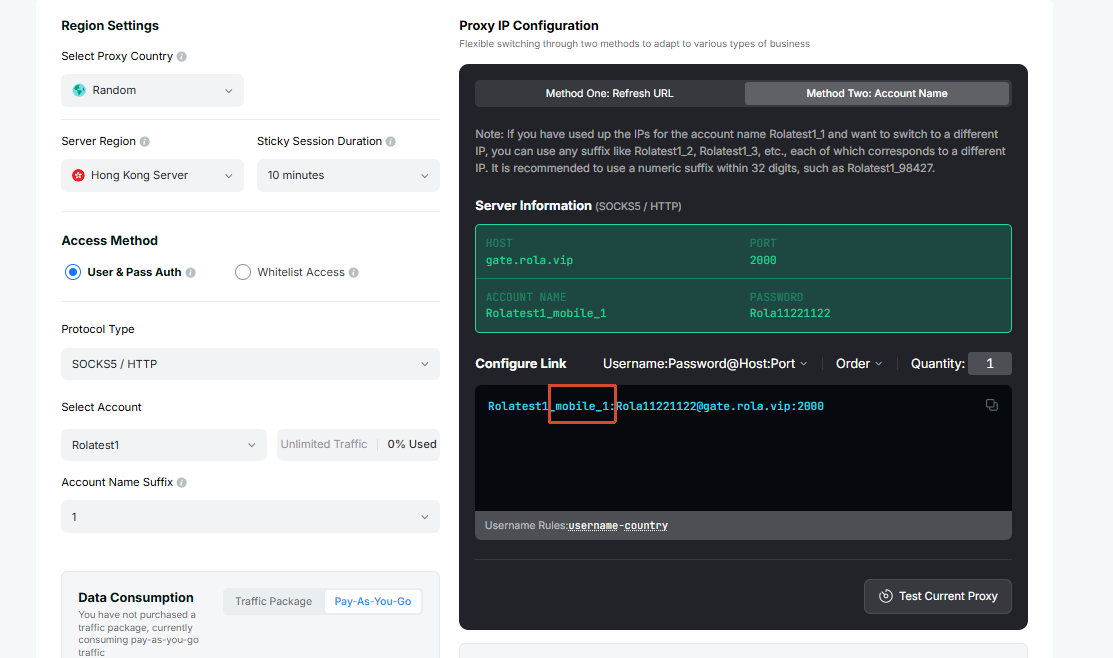
Configuration Flow
Open Mobile IP Settings.
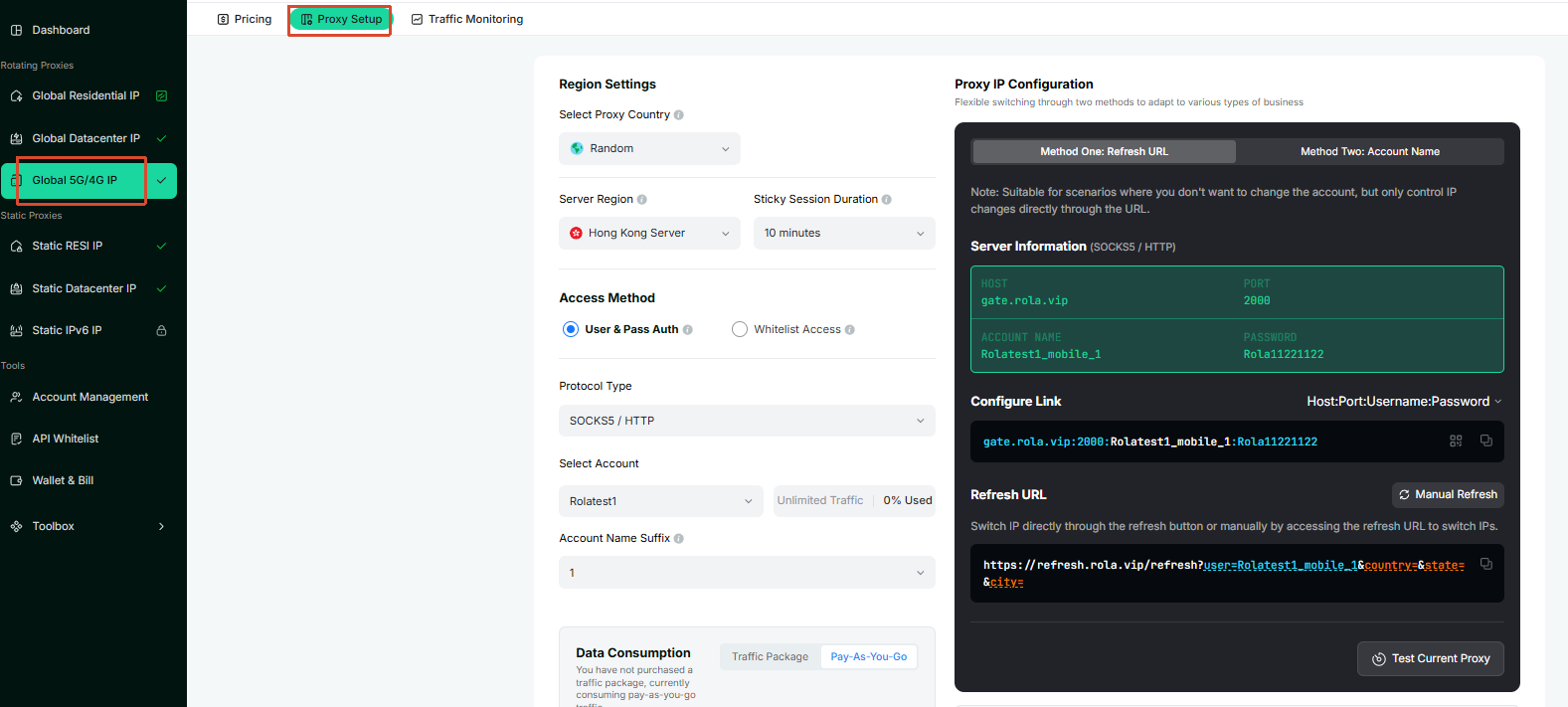
Select or enter the account name on the configuration page.
For a simple check, start with a country-level account name carrying the
_mobilemarker, such astest_mobile-country-us.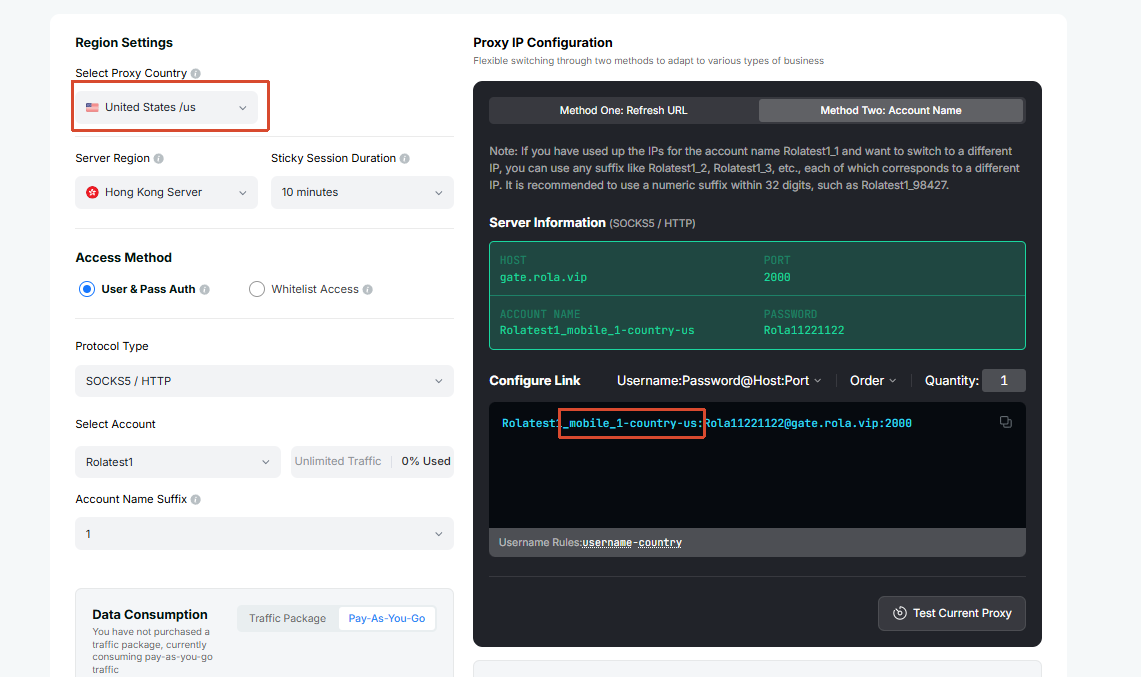
For login, registration, form submission, or another continuous mobile workflow, use an account name with an underscore session ID, such as
test_mobile_1.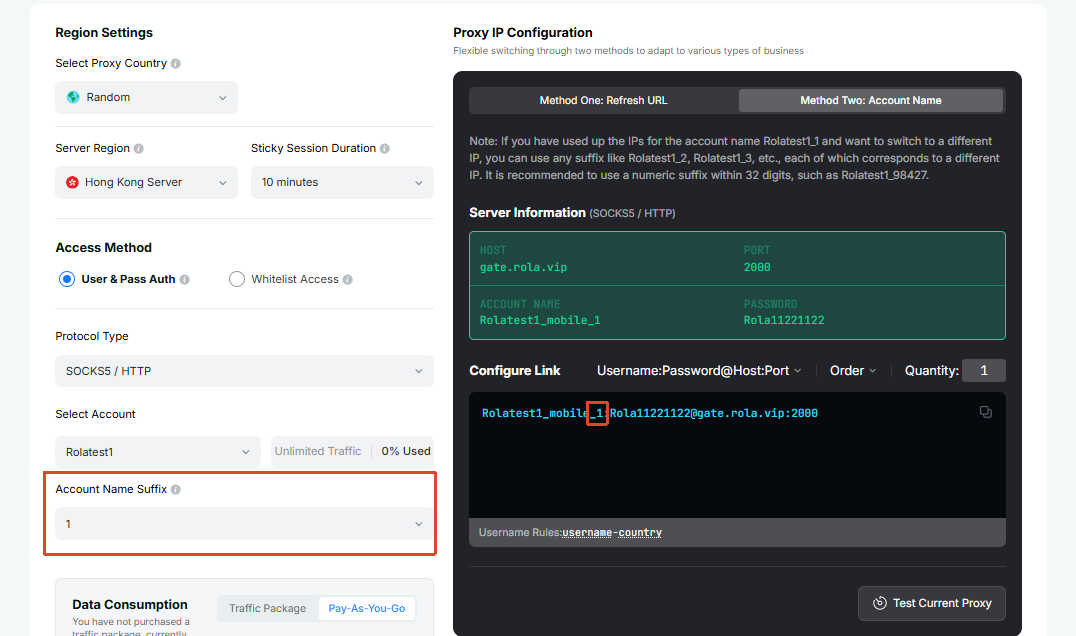
Add
sessiontimebased on the workflow duration, such astest_mobile_1-country-us-sessiontime-10. The supported range is 1-120 minutes.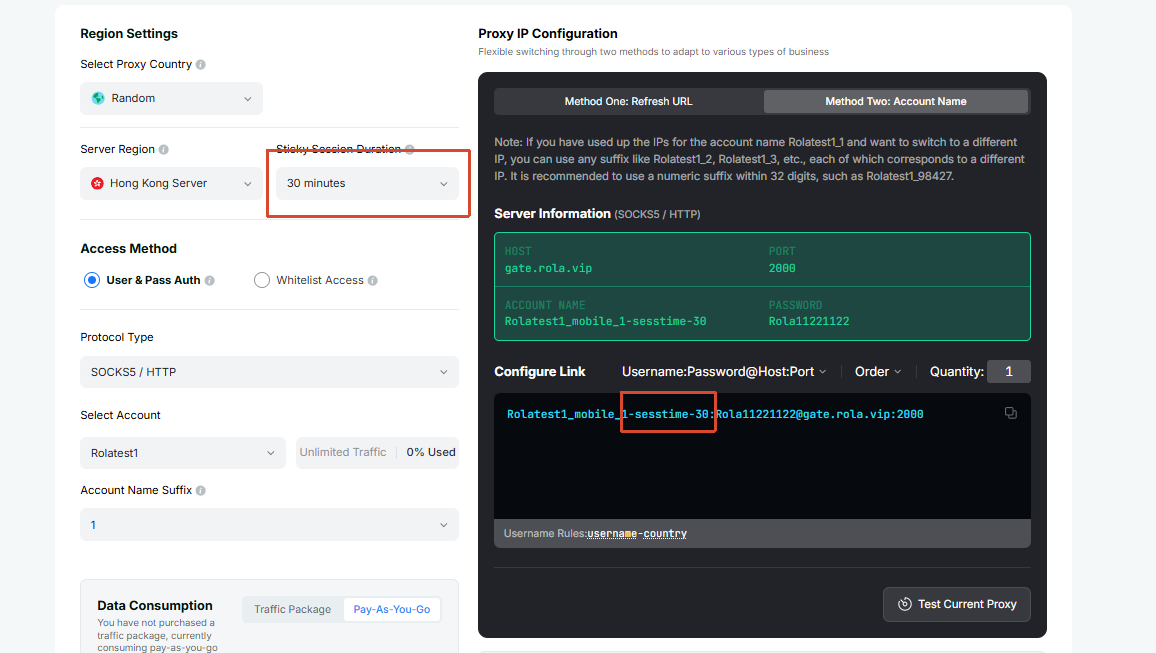
For stateless requests where every request should rotate IP, append
-f-1, such astest_mobile-country-us-f-1.Copy the generated host, port, username, and password into your mobile proxy tool, fingerprint browser, app testing environment, or code.
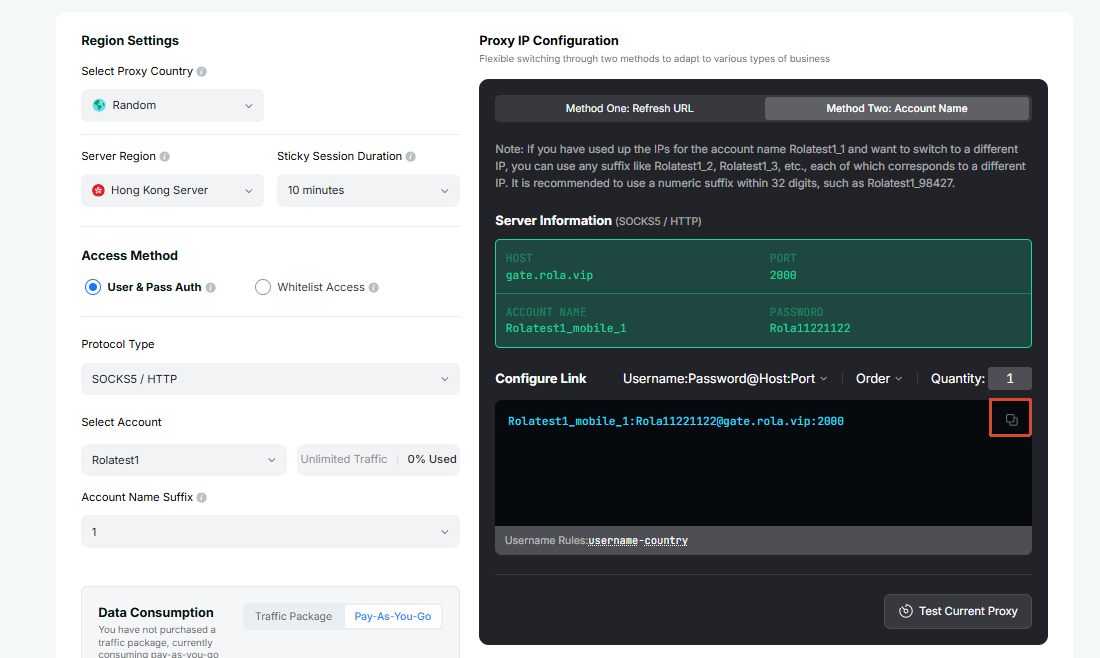
After connecting, check the exit country and network type before starting the formal workflow.
Send a Request
After getting the generated username, password, proxy domain, and port from the dashboard, send a test request with curl to confirm that the Mobile IP proxy is connected.
SOCKS5 proxy:
curl -x socks5h://username:password@proxy-domain:port http://ip123.in/ip.jsonHTTP proxy:
curl -x http://username:password@proxy-domain:port http://ip123.in/ip.jsonThe response will use a structure similar to the example below. The actual IP, location, and organization depend on the current exit. city and region in the response are detected IP details from the lookup service; they do not mean Mobile IP supports city-level targeting.
{
  "ip": "47.239.91.123",
  "city": "hong kong",
  "organization": "Alibaba (US) Technology Co., Ltd.",
  "asn": 45102,
  "network": "47.238.0.0/15",
  "country": "Hong Kong",
  "country_code": "HK",
  "continent": "Asia",
  "continent_code": "AS",
  "postal": "-",
  "latitude": "22.2842",
  "longitude": "114.1759",
  "timezone": "Asia/Hong_Kong",
  "metro_code": null,
  "region_code": null,
  "region_cn": "",
  "region": "Hong Kong"
}
Session Suggestions
Mobile workflows often include a continuous flow, such as opening an app, logging in, browsing, and submitting information. Use a fixed account name for one workflow, such as test_mobile_1; the value after the underscore, 1, is the sessionid. Then set sessiontime based on the expected duration:
| Workflow | Recommendation |
|---|---|
| Simple visit or check | No fixed session, or 3-5 minutes |
| Login, registration, form submission | Fixed account name such as test_mobile_1, 10-20 minutes |
| Longer testing workflow | Fixed account name, set sessiontime to the actual workflow duration, up to 120 minutes |
| Every request needs a new IP | Use test_mobile-country-us-f-1; do not use it for workflows that need login-state continuity |
TIP
sessiontime is measured in minutes and supports 1-120 minutes. Longer sessions are useful for continuous workflows, but if a task does not need the same exit, there is no need to extend the session unnecessarily.