
BitBrowser Access Guide
🌐 BitBrowser Access
📌 About BitBrowser
BitBrowser is a completely free fingerprint browser, suitable for batch account management
Step 1: Download Software
Download BitBrowser (completely free), Click here to download
Step 2: Select Proxy Type
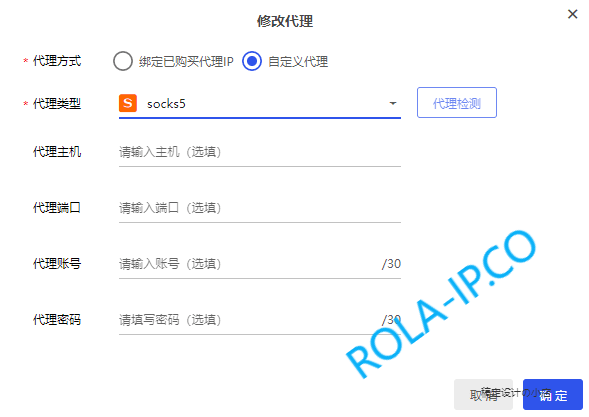
Click Modify Proxy under proxy IP, Proxy Type select http or socks5, take SOCKS5 as an example
Step 3: Fill in Proxy Information
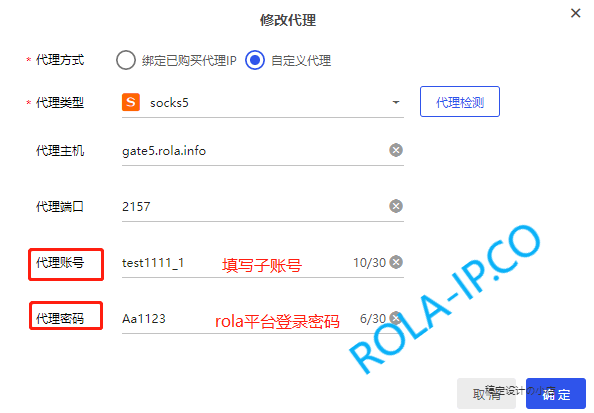
Fill in Proxy Host, Proxy Port, Proxy Account, Proxy Password, take Rotating Residential IP as an example:
📍 How to Get Proxy Information
- Rotating IP: In the backend, select
Global Residential IP→Rotating Residential IP→ ClickGenerate Proxy Informationto see - Static IP: In the backend, select
Global Static IP Traffic Billing→Static Residential IP Order Listto see
Step 4: Proxy Detection
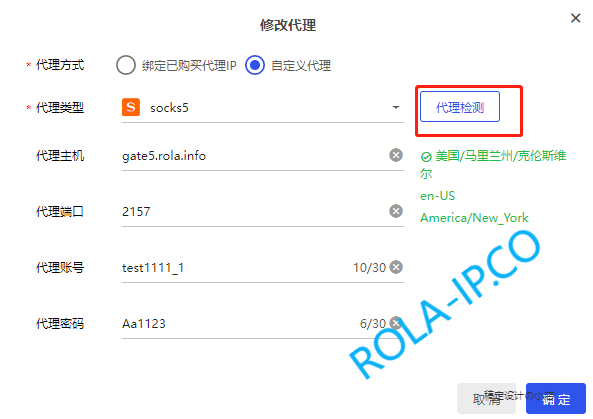
After filling in, click Proxy Detection, the detected IP is consistent with the IP detected in the backend (after generating proxy, there is an "Online Check IP" function in the lower right corner), that is, the configuration is successful, click OK to complete
✅ Configuration Complete
Now you can use BitBrowser to access websites normally!