
Account Whitelist
By default, anyone with a sub-account's username and password can connect to your proxies from any device or IP. The account whitelist tightens this: it restricts an account so that only specific IPs may connect with its credentials, protecting you if the username/password leaks.
It takes effect only when both conditions are met:
- At least one IP has been added to the account whitelist; and
- The sub-account has "IP Whitelist Limit" enabled.
Once both are true, only the whitelisted IPs can connect using that account's username + password. All other device IPs are rejected.
💡 Difference from "API Whitelist Access"
API Whitelist Access is a credential-free way to use proxies. The account whitelist is a security restriction that only controls who may connect with credentials — it doesn't change how you connect.
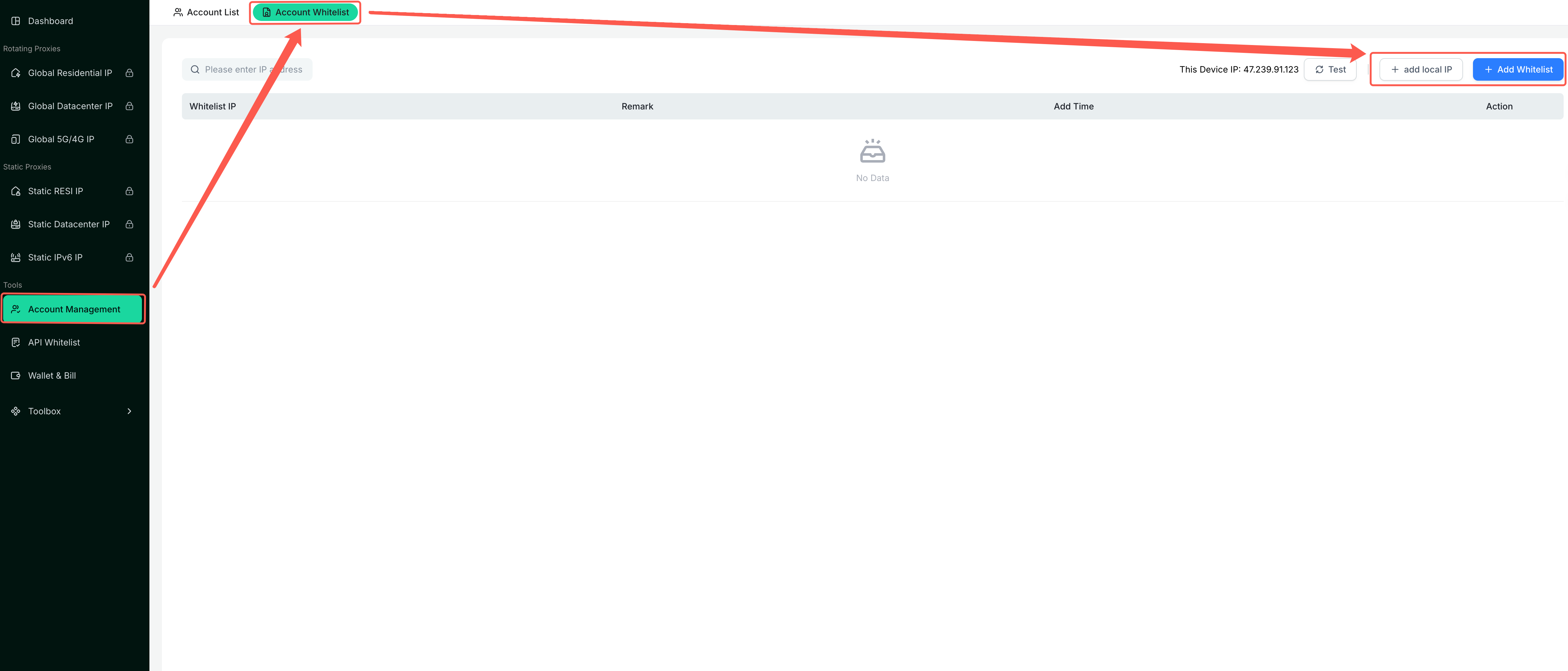
Step 1: Add Whitelist IPs
- In the left menu, click "Account Management" (under the "Tools" group).
- Switch to the "Account Whitelist" tab at the top.
- Add the IPs you want to allow:
- Click "add local IP" to add your current device's public IP directly;
- or click "Add Whitelist" to enter an IP manually (a note is optional);
- click "Test" to see your device's current public IP.
Step 2: Enable IP Whitelist Limit for the Sub-Account
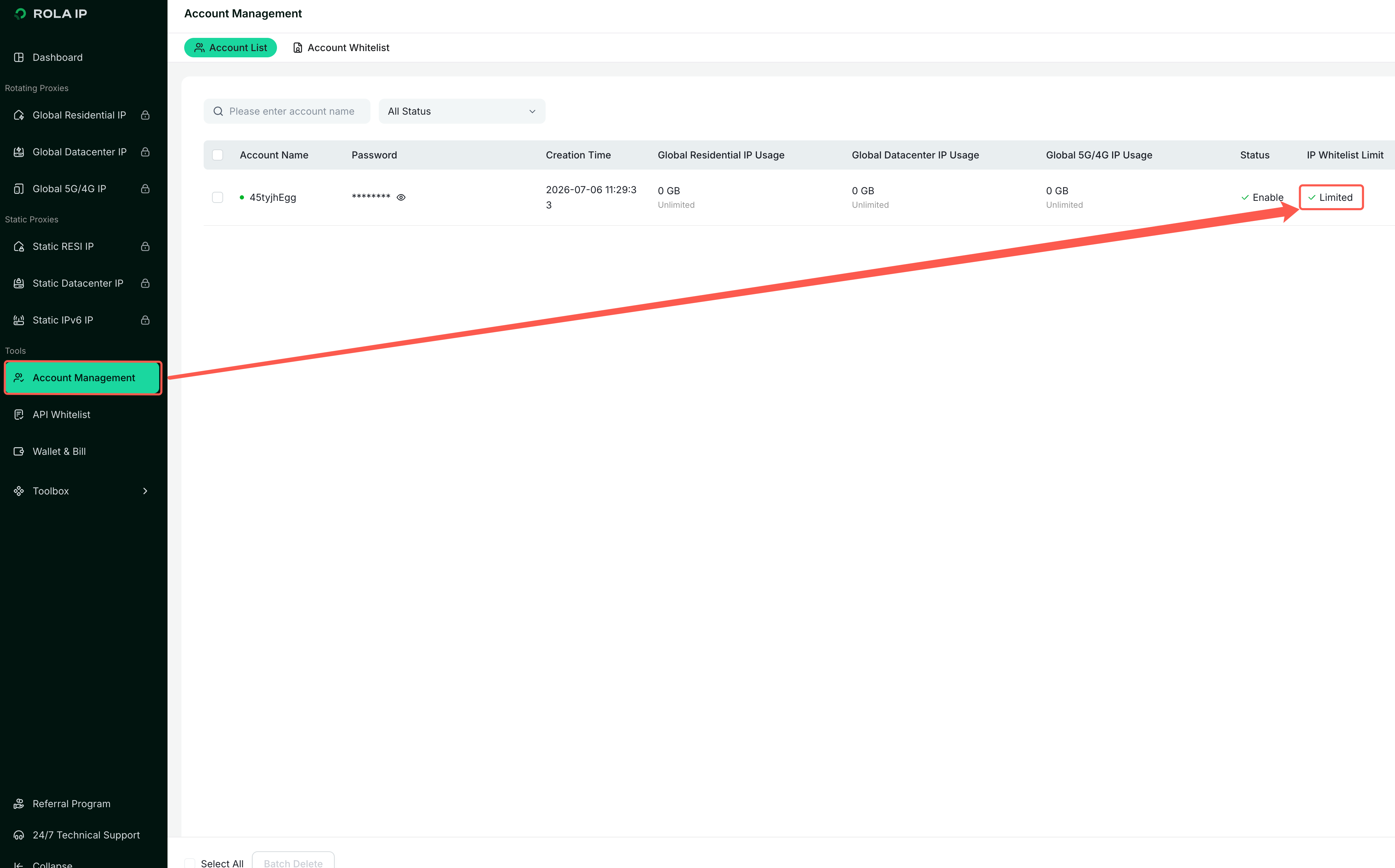
Go back to the "Account List", find the target sub-account, and turn on "IP Whitelist Limit". When the status shows "Limited", it's active.
💡 Tip
The restriction only applies to sub-accounts where the switch is on; accounts without it can still connect with credentials from any IP. You can control this per account.
Test the Connection
From a device on the whitelist, connect with the account's username + password as usual — nothing changes:
curl -x socks5h://username:password@proxy-domain:port https://ip123.in/ip.jsonFrom a device not on the whitelist, connecting with the same credentials fails — which confirms the restriction is working.
⚠️ Note
- The restriction is active only when both "the whitelist has at least one IP" and "the sub-account has IP Whitelist Limit enabled" are true.
- You add the device's public IP. Home/office broadband public IPs can change; add the new one again if it does.
- If a whitelisted device still can't connect, first check that its current public IP matches the whitelist (use "Test" on the page), and that the username and password are correct.