
Rotating Residential
Rotating residential proxies come from real home broadband networks. Compared with datacenter IPs, residential IPs are closer to normal user traffic and are better suited for scenarios that require higher account trust and better success rates.
Best For
- Social media registration, login, account warm-up, and operation
- E-commerce browsing, store operation, and checkout flow testing
- Ad verification, landing page checks, and localized content checks
- Data collection from websites with stronger anti-abuse rules
Characteristics
- Closer to real users: traffic exits through residential networks.
- Location control: use
country,state, andcityto target a region. - Session control: use the
sessionidinside the account name to separate independent exits, and usesessiontimeto keep a session for 1-120 minutes. - Per-request rotation: stateless tasks can append
-f-1to rotate IP on every request. - Good for continuous workflows: login, browsing, and form submission should usually stay in the same session.
Configuration
Use the host, port, username, and password generated in the dashboard. To target a location or session, combine the account name, location parameters, and sessiontime:
test-country-us
test-country-us-state-ny
test-country-us-state-ny-city-newyork
test_1-country-us-sessiontime-10
test-country-us-f-1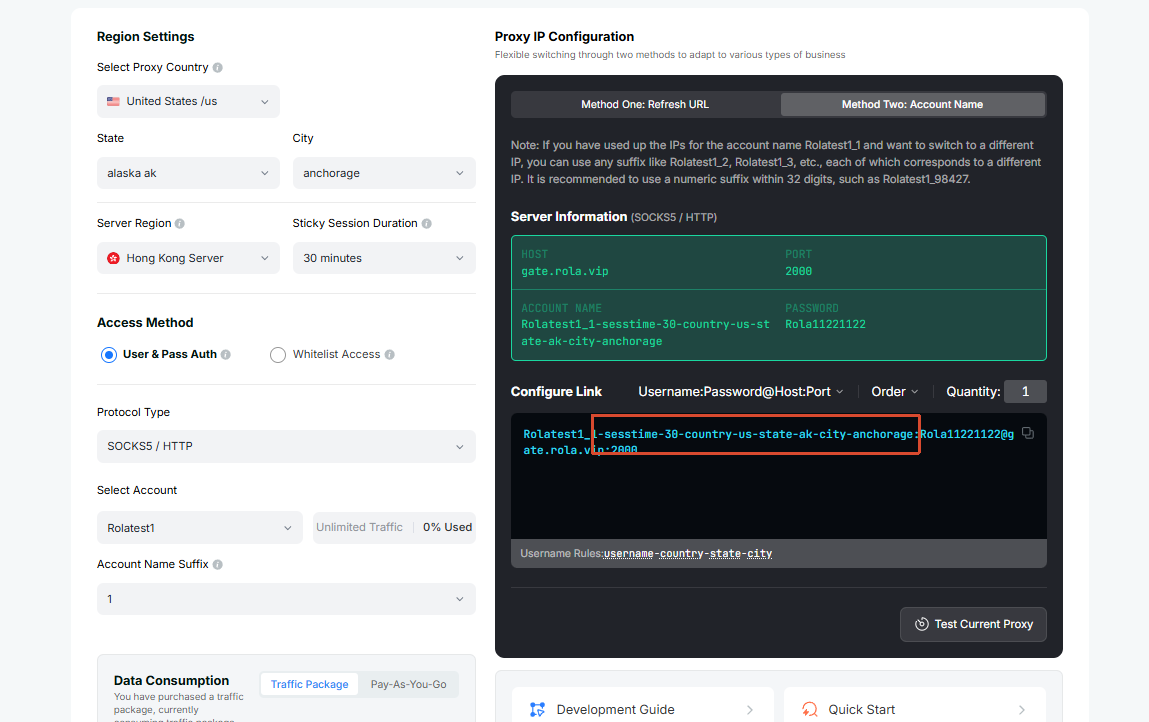
Configuration Flow
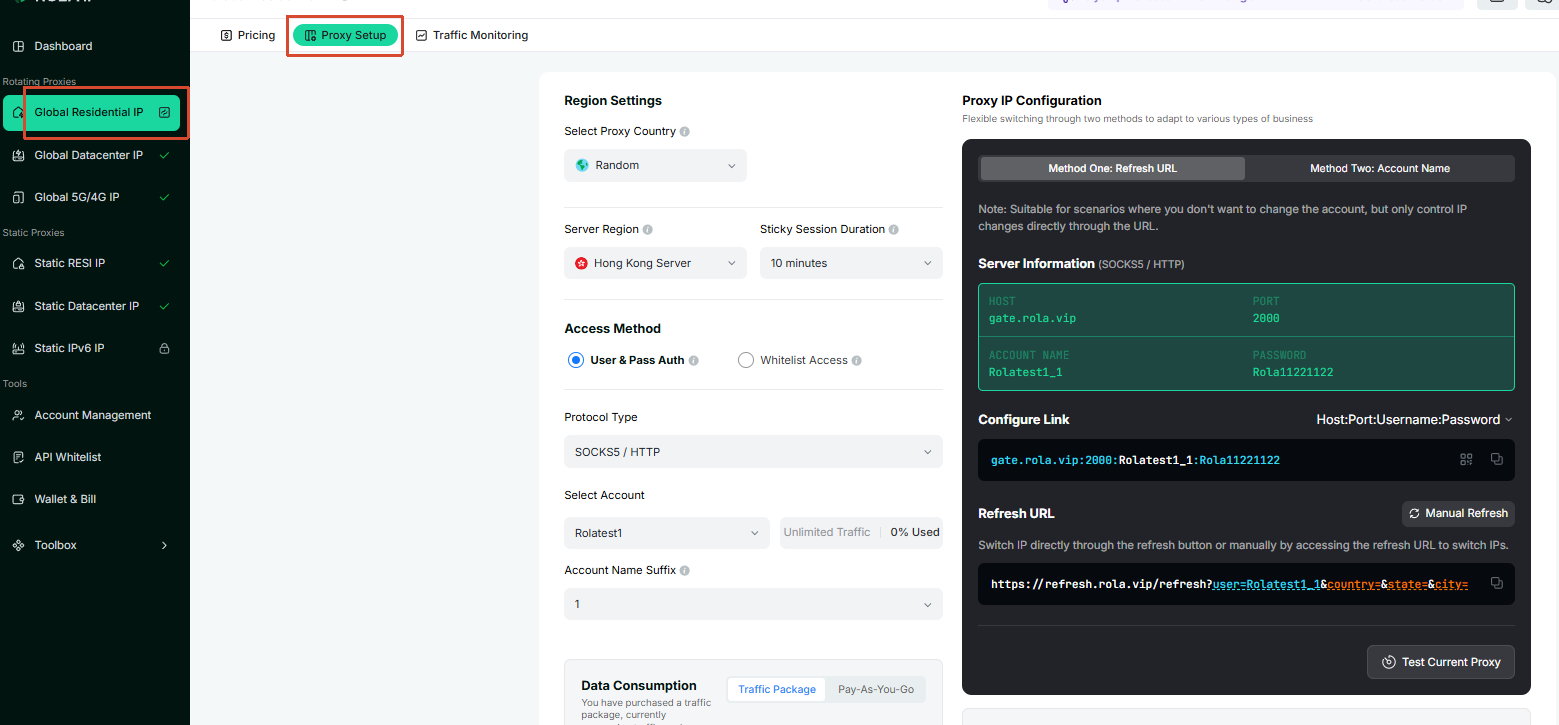
Open Residential Settings.
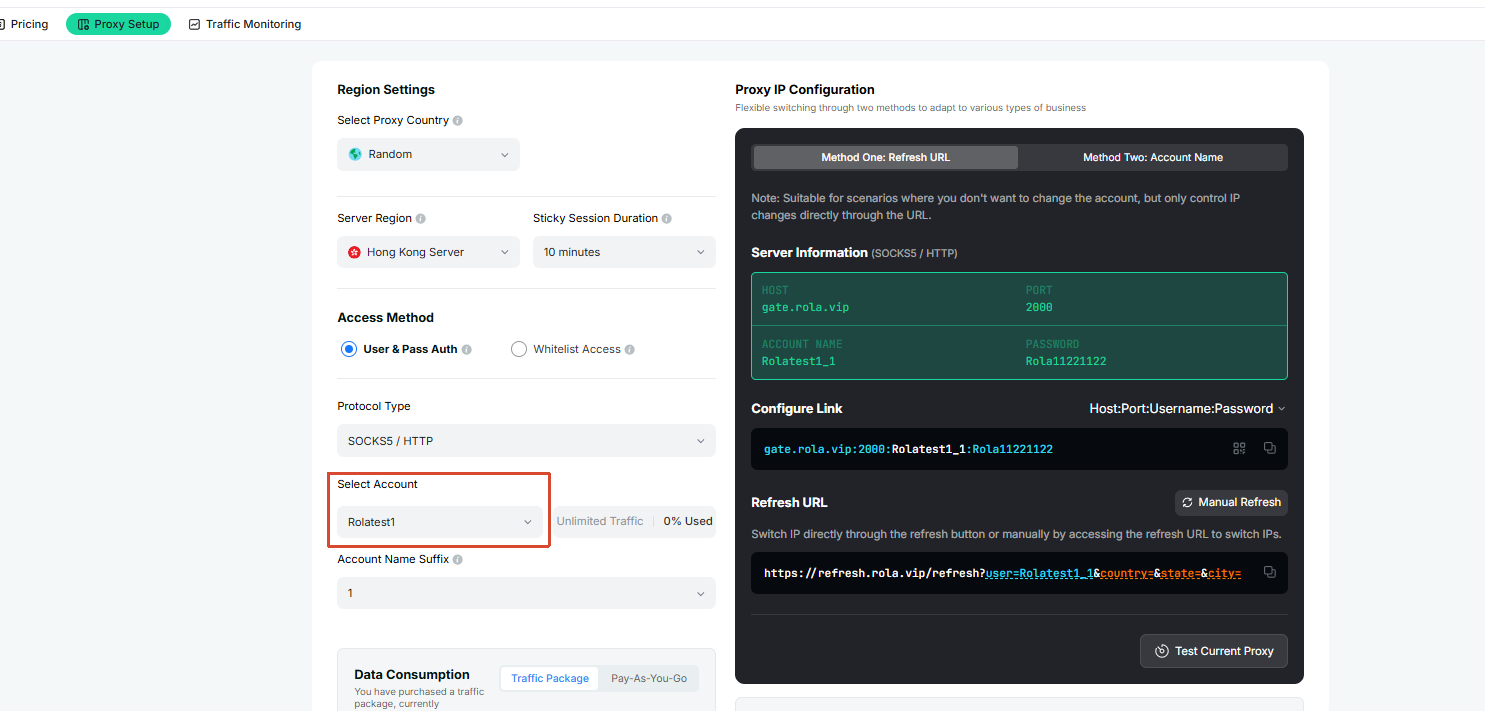
Select an account on the configuration page, or enter the account name for this task.
For a normal rotating residential exit, use the basic account name, such as
test.For country, state, or city targeting, append location parameters, such as
test-country-us-state-ny.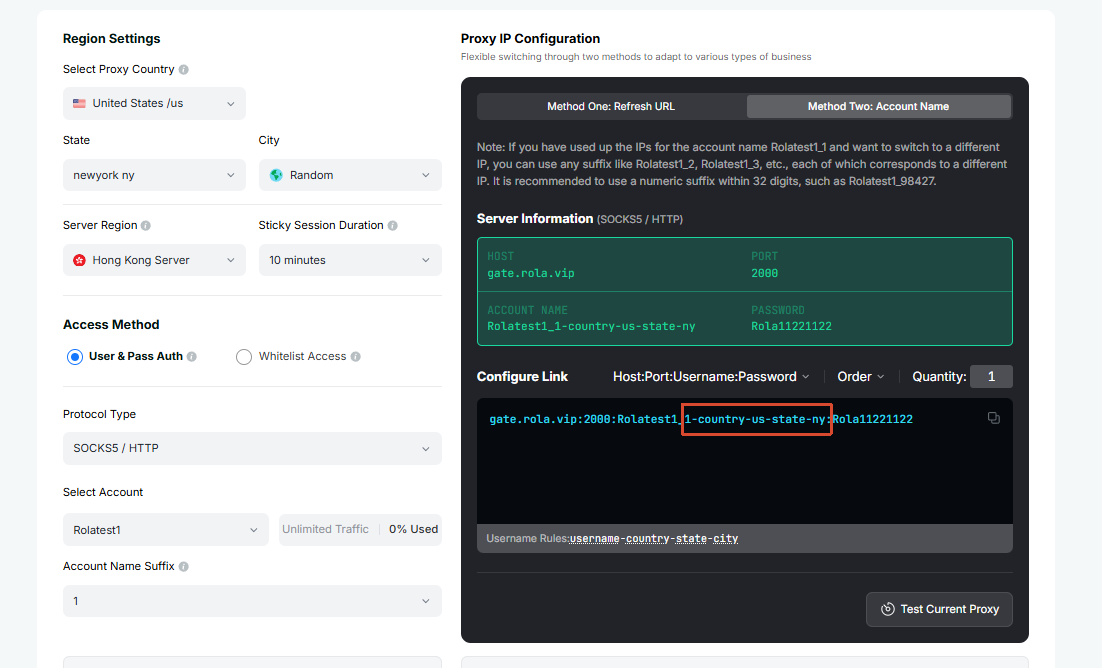
To run multiple independent exits, use different underscore session IDs for different tasks, such as
test_1andtest_2. If one exit needs to stay stable for 1-120 minutes, appendsessiontime, such astest_1-country-us-sessiontime-10.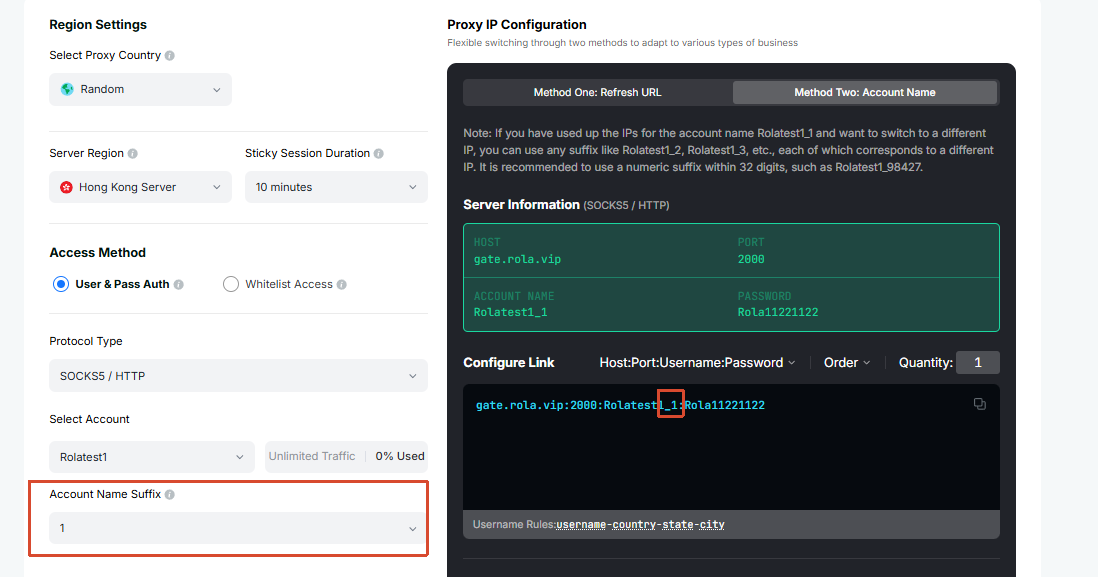
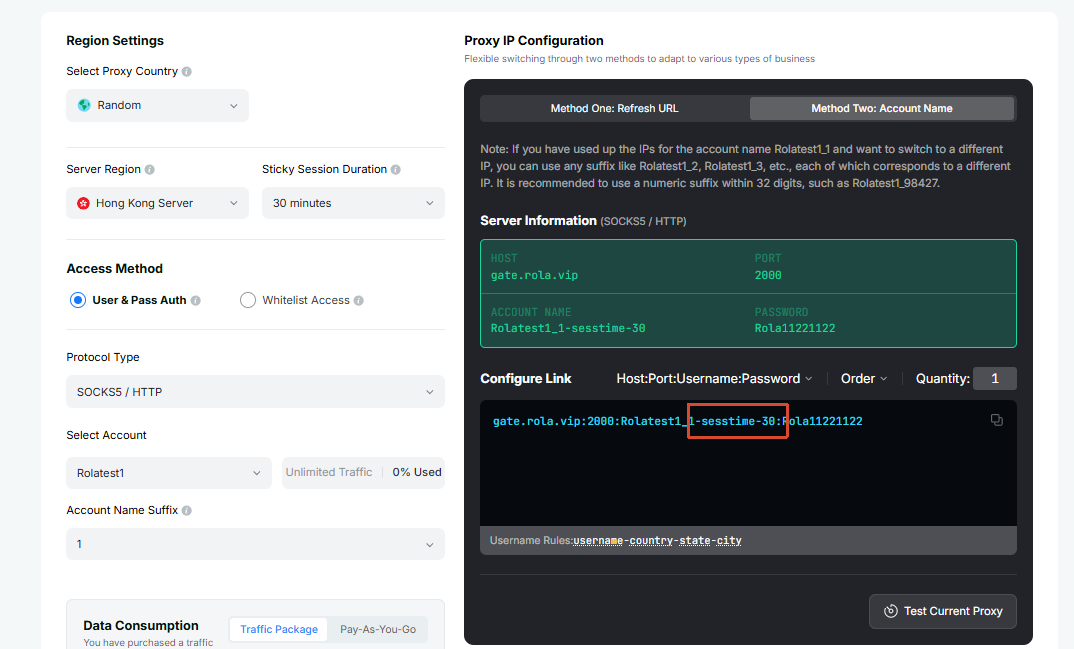
For scraping, bulk access, or other stateless tasks where every request should rotate IP, append
-f-1, such astest-country-us-f-1.Copy the generated host, port, username, and password into your browser, system proxy, fingerprint browser, or code.
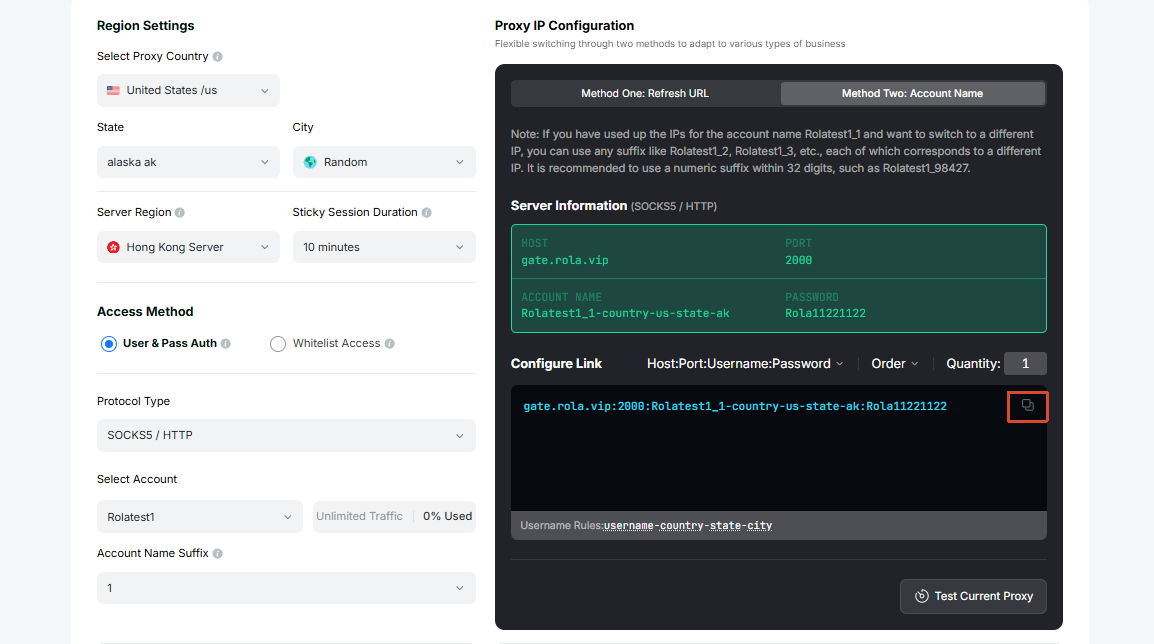
After connecting, check the exit IP and location before starting the workflow.
Send a Request
After getting the generated username, password, proxy domain, and port from the dashboard, send a test request with curl to confirm that the rotating residential proxy is connected.
SOCKS5 proxy:
curl -x socks5h://username:password@proxy-domain:port http://ip123.in/ip.jsonHTTP proxy:
curl -x http://username:password@proxy-domain:port http://ip123.in/ip.jsonThe response will use a structure similar to the example below. The actual IP, location, and organization depend on the current exit:
{
  "ip": "47.239.91.123",
  "city": "hong kong",
  "organization": "Alibaba (US) Technology Co., Ltd.",
  "asn": 45102,
  "network": "47.238.0.0/15",
  "country": "Hong Kong",
  "country_code": "HK",
  "continent": "Asia",
  "continent_code": "AS",
  "postal": "-",
  "latitude": "22.2842",
  "longitude": "114.1759",
  "timezone": "Asia/Hong_Kong",
  "metro_code": null,
  "region_code": null,
  "region_cn": "",
  "region": "Hong Kong"
}
TIP
Use the same account name for one continuous workflow, such as test_1. When running multiple independent exits at the same time, use separate IDs such as test_1 and test_2. If every request should use a different IP, use -f-1; do not use it for workflows that need login-state continuity.
Common Combinations
| Goal | Example |
|---|---|
| US IP | test-country-us |
| New York State | test-country-us-state-ny |
| New York City | test-country-us-state-ny-city-newyork |
| Keep a 10-minute session | test_1-country-us-sessiontime-10 |
| Switch to another independent IP | test_2-country-us-sessiontime-10 |
| Rotate IP on every request | test-country-us-f-1 |
WARNING
If city-level targeting cannot connect or has no network, the city may not have available resources at that moment. Start with country, then add state and city only when needed.