
API Whitelist Access
Besides username/password authentication, Rotating Residential, Rotating Datacenter, and Mobile IP all support API whitelist access: add your local device's public IP to the allowlist, then extract a list of IP:port entries from an API and use them directly — no username or password required.
This suits environments with a fixed exit IP (servers, a fixed office network) or cases where configuring credentials in every tool is inconvenient.
💡 Difference from "Account Whitelist"
- API Whitelist Access (this page): a credential-free way to use proxies — whitelisted devices extract IPs and use them directly.
- Account Whitelist: a security restriction that limits which IPs may connect with an account's username + password, without changing how you use it.
Compared with Username/Password
| Username/Password | Whitelist Access | |
|---|---|---|
| Authentication | Username + password | Local public IP on the allowlist, no credentials |
| How you use it | Fixed gateway + parameterized username | Extract concrete IP:port entries and use them directly |
| Region / duration | Written into the username | Specified via the extraction API parameters |
| Best for | Multiple accounts, fine-grained sessions | Fixed-exit environments, bulk extraction |
Steps
- Open the settings page for your network: Rotating Residential, Rotating Datacenter, or Mobile IP.
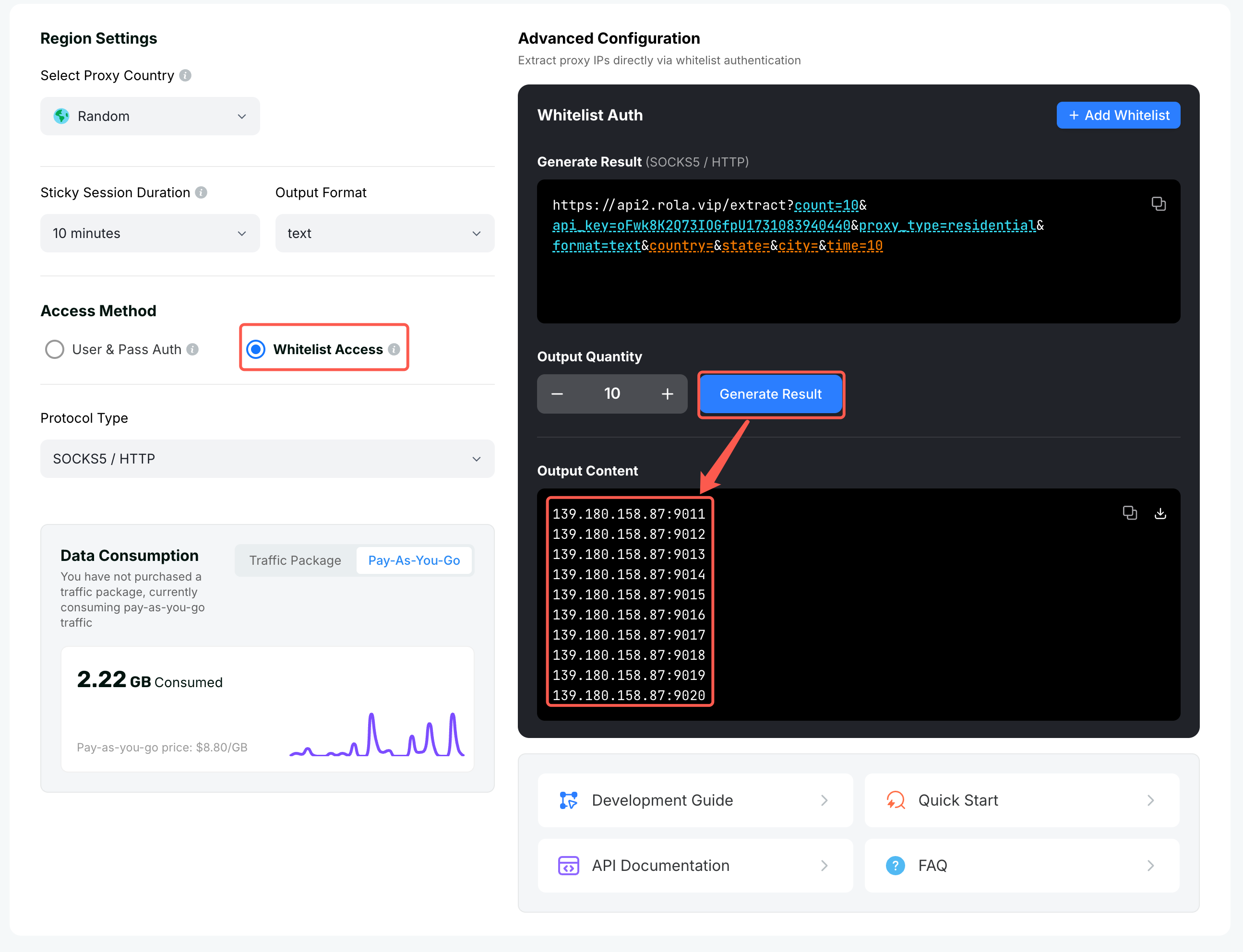
- Under Proxy IP Configuration, choose Whitelist Access.
- Add the public IP of the device that will run the proxy to the allowlist ("Add Whitelist" on the settings page, or "API Whitelist" in the left menu). IPs not on the allowlist are rejected.
- Set the region, IP duration, protocol (SOCKS5 / HTTP), output format, and output count.
- Click Generate, get a set of
IP:portentries, and use them directly in your tool or code — no credentials needed.
TIP
With whitelist access, each extracted IP:port is a ready-to-use proxy. You don't build a parameterized username; region and duration are set through the extraction API parameters instead.
Extraction API
The "Whitelist Authentication" panel on the settings page generates the extraction link for you — just copy it. The link looks like this:
https://api2.rola.vip/extract?count=10&api_key=YOUR_API_KEY&proxy_type=residential&format=text&country=&state=&city=&time=10Parameters
| Parameter | Description | Example |
|---|---|---|
count | Number of IPs to extract (the "output count") | count=10 |
api_key | Your API key, from the console | api_key=YOUR_API_KEY |
proxy_type | Network type: Rotating Residential residential, Rotating Datacenter datacenter, Mobile IP mobile | proxy_type=residential |
format | Output format, e.g. text | format=text |
country / state / city | Region parameters; leave empty for any. state and city are Rotating Residential only | country=us |
time | IP duration in minutes, 1-120 | time=10 |
TIP
proxy_type is determined by the selected network and filled in automatically by the console — rely on the link the console generates. The region and duration parameters (country/state/city/time) correspond to the ones written into the username under username/password auth.
Using the Extracted IPs
With format=text, the result is one IP:port per line:
1.2.3.4:2000
5.6.7.8:2000
Each entry is a ready-to-use proxy (the device is already on the allowlist, so no credentials):
curl -x socks5h://1.2.3.4:2000 http://ip123.in/ip.jsonThe returned JSON contains the exit IP and its location, confirming the proxy works.
About the extracted IP
Each extracted IP:port is one of our relay (transit) server addresses, not the final exit IP. Once you actually send a request through it, the exit becomes an IP from the region you selected — run the check command above to see the real exit IP and its location.
WARNING
- Only devices whose IP is on the allowlist can use the extracted proxies. If your local public IP changes, add it to the allowlist again.
- If a connection fails, first check that your device's public IP is on the allowlist, that
api_keyis correct, and thatproxy_typematches the selected network.