
Quick Start
You can connect to Rola IP in just a few minutes. To get started, all you really need is one set of proxy connection details — host, port, username, and password. Drop them into your browser, anti-detect browser, proxy tool, or code, and you're online.
Finer control like region, sessions, and per-request rotation can wait until you're connected — tune it later in Configuration Parameters.
Step 1: Choose a Network and Open Its Settings
Pick the network that fits your workflow and open its configuration page:
| Network | Configuration Page | Best For |
|---|---|---|
| Rotating Residential | Open Residential Settings | Real-user environment, account registration, social media, e-commerce, higher success rate |
| Rotating Datacenter | Open Datacenter Settings | Low-risk scraping, bulk access, API checks, cost-sensitive tasks |
| Mobile IP | Open Mobile IP Settings | Mobile workflows, app testing, high-risk account flows |
Step 2: Grab Your Connection Details
Once the settings page is open, you'll see the proxy connection details for your account. To get started, just copy these four:
- Host
- Port
- Username (account name)
- Password
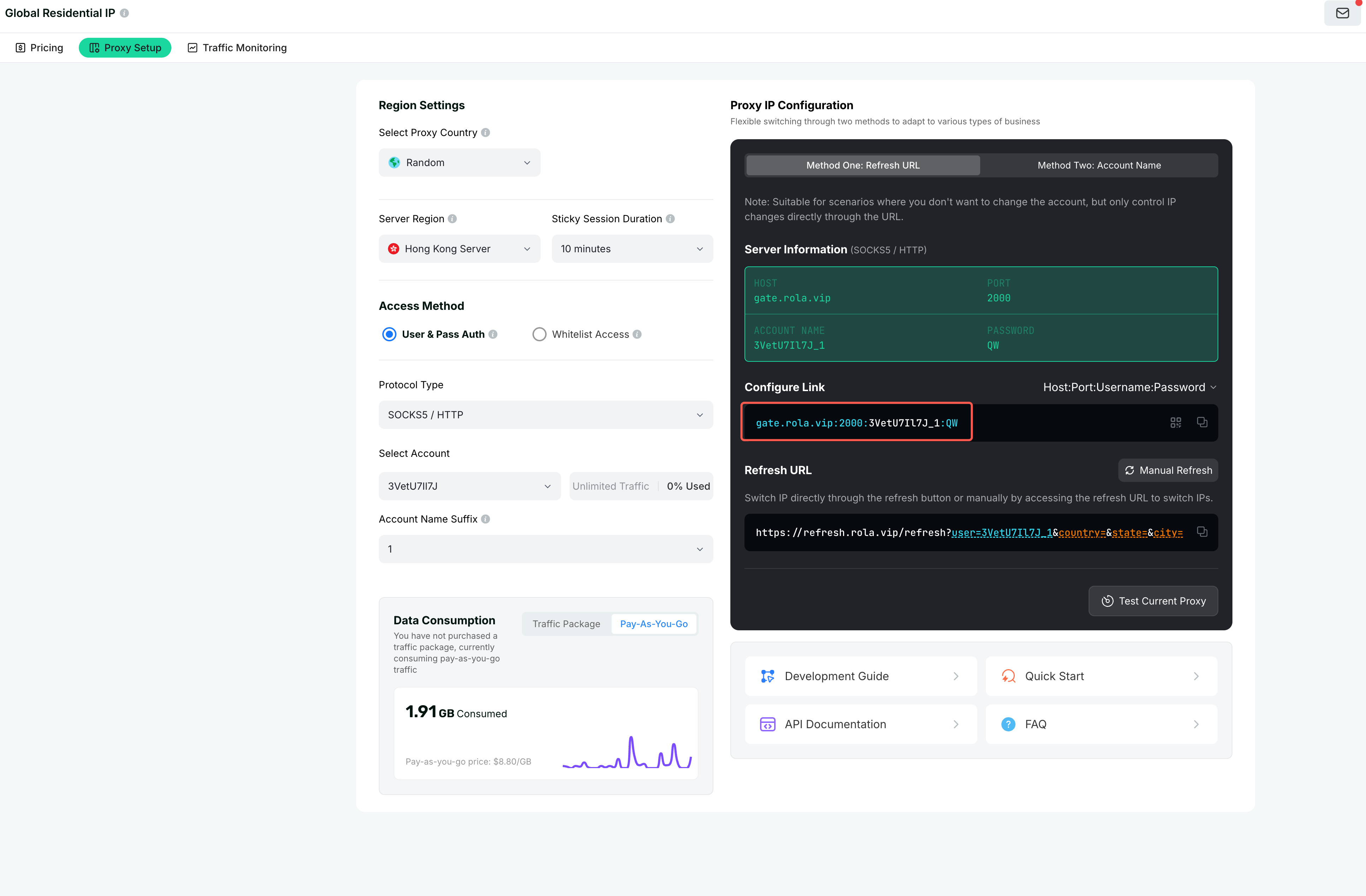
Authentication
Username/password is the default and the simplest — just copy and go. If you prefer passwordless access, use whitelist access instead: add your local device IP to the allowlist and extract IP:port entries directly, no credentials.
Step 3: Connect with the Simplest Username
The username is where you control the proxy exit. For your first connection, don't overthink the parameters — just use the account name, or add a country to target a region:
test
test-country-us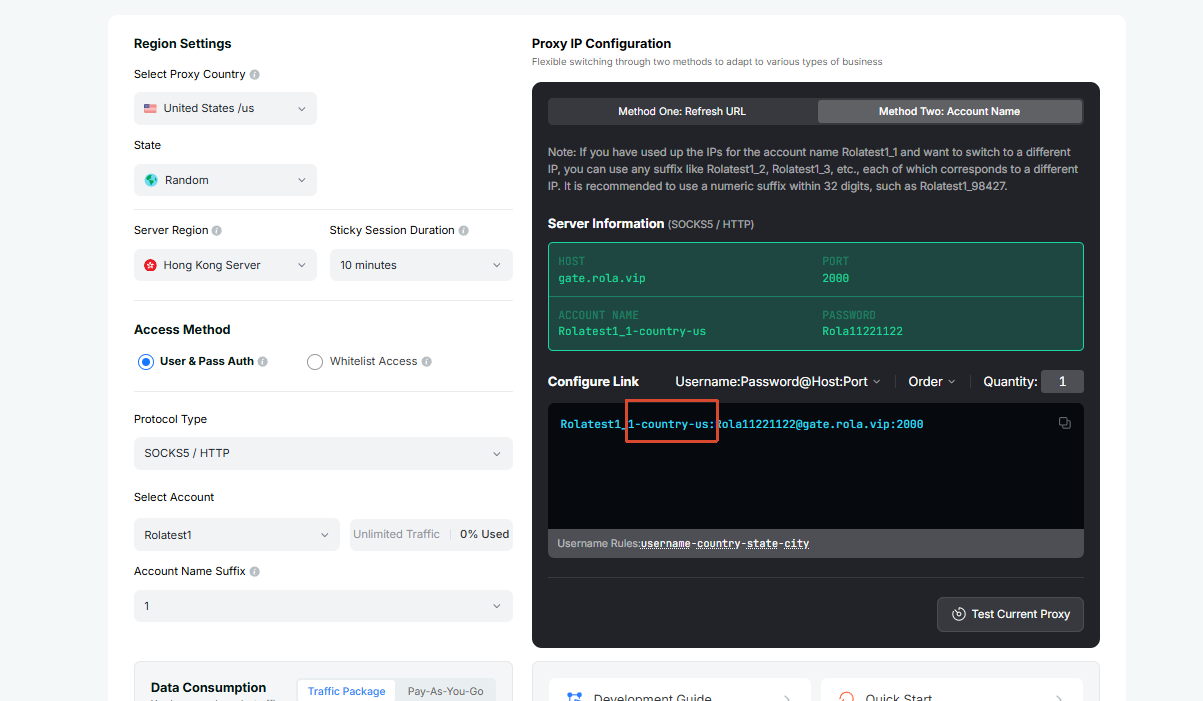
Datacenter / Mobile IP account names
If you're using Rotating Datacenter or Mobile IP, the account name needs a marker: add _dc for datacenter or _mobile for mobile IP, e.g. test_dc-country-us, test_mobile-country-us. Rotating Residential needs no marker.
Confirm you can reach the internet first, then add more parameters as needed.
Step 4: Test the Connection
Verify quickly with curl (replace the proxy domain, port, username, and password with your own):
curl -x socks5h://test-country-us:YOUR_PASSWORD@PROXY_DOMAIN:PORT http://ip123.in/ip.jsonThe returned JSON includes the exit IP and its location. If the IP differs from your real IP and matches the country you requested, the proxy is working and you're ready to integrate.

Next: Fine-Tune the Exit
Once connected, all finer exit control is done through username parameters:
| Goal | Add to username | Example |
|---|---|---|
| Target a country | country | test-country-us |
| Keep the same IP (login, checkout, etc.) | sessionid + sessiontime | test_1-country-us-sessiontime-10 |
| Run multiple independent exits | different sessionid | test_1-..., test_2-... |
| Rotate IP on every request (scraping, etc.) | f-1 | test-country-us-f-1 |
TIP
Rotating Residential also supports state and city for city-level targeting. For the full parameter rules, value ranges, and more examples, see Configuration Parameters.