
App Proxy
Rola App Connect routes selected applications through proxy IPs. It supports direct connections from mainland China without a separate VPN or external proxy tool. After setup, use the proxy network from the applications you have added and enabled.
Choose a Network Mode
| Mode | Enabled applications | Other applications | Typical use |
|---|---|---|---|
| App routing | Connect through the selected proxy IP | Keep their local direct connection | AI tools, development, and office collaboration |
| Isolation mode | Connect through the selected proxy IP | Unauthorized applications cannot access the network | Store management and strict control of application network access |
Before enabling isolation mode
Add and enable every application that needs network access. Unauthorized browsers, messaging tools, and background programs cannot connect in isolation mode. Use app routing if they need to retain their local connections.
Setup
1. Sign In and Check Your Proxy IPs
Download and install Rola App Connect, then sign in with your Rola account. Check that usable proxy IPs and traffic have synced.
2. Add Your Applications
Drag applications or shortcuts to add them
Drag an application or its shortcut directly onto the App proxy page. The client automatically identifies it and adds it to the application list, without requiring you to enter the application name or executable details manually.
For AI tools, you can also click Find and add AI apps on the App proxy page. Review the detected tools, select the ones you need, and click Add all.
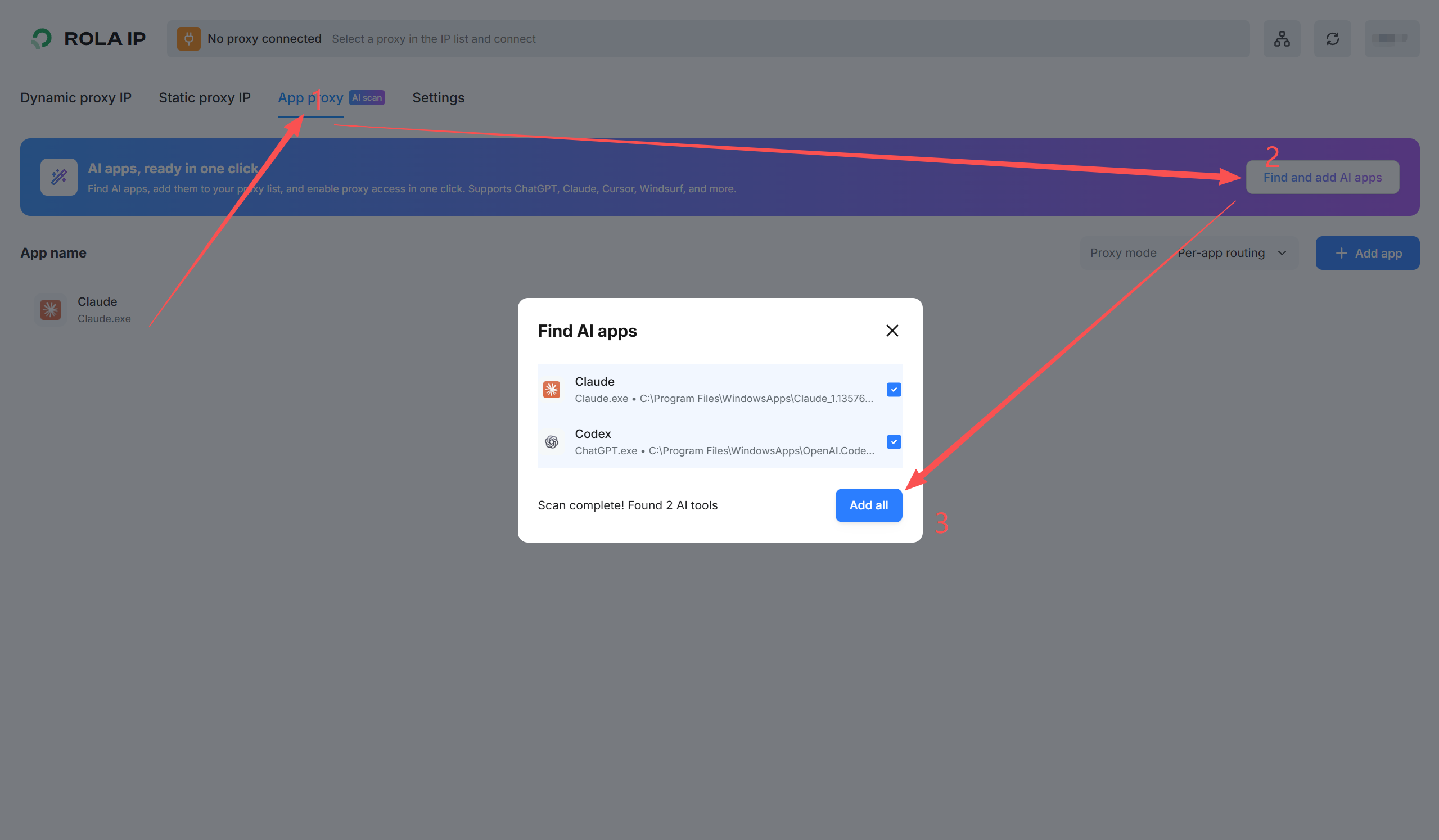
To add an application manually, click Add app, enter an application name, and select or enter its executable before confirming.
3. Choose a Mode and Enable the App Switches
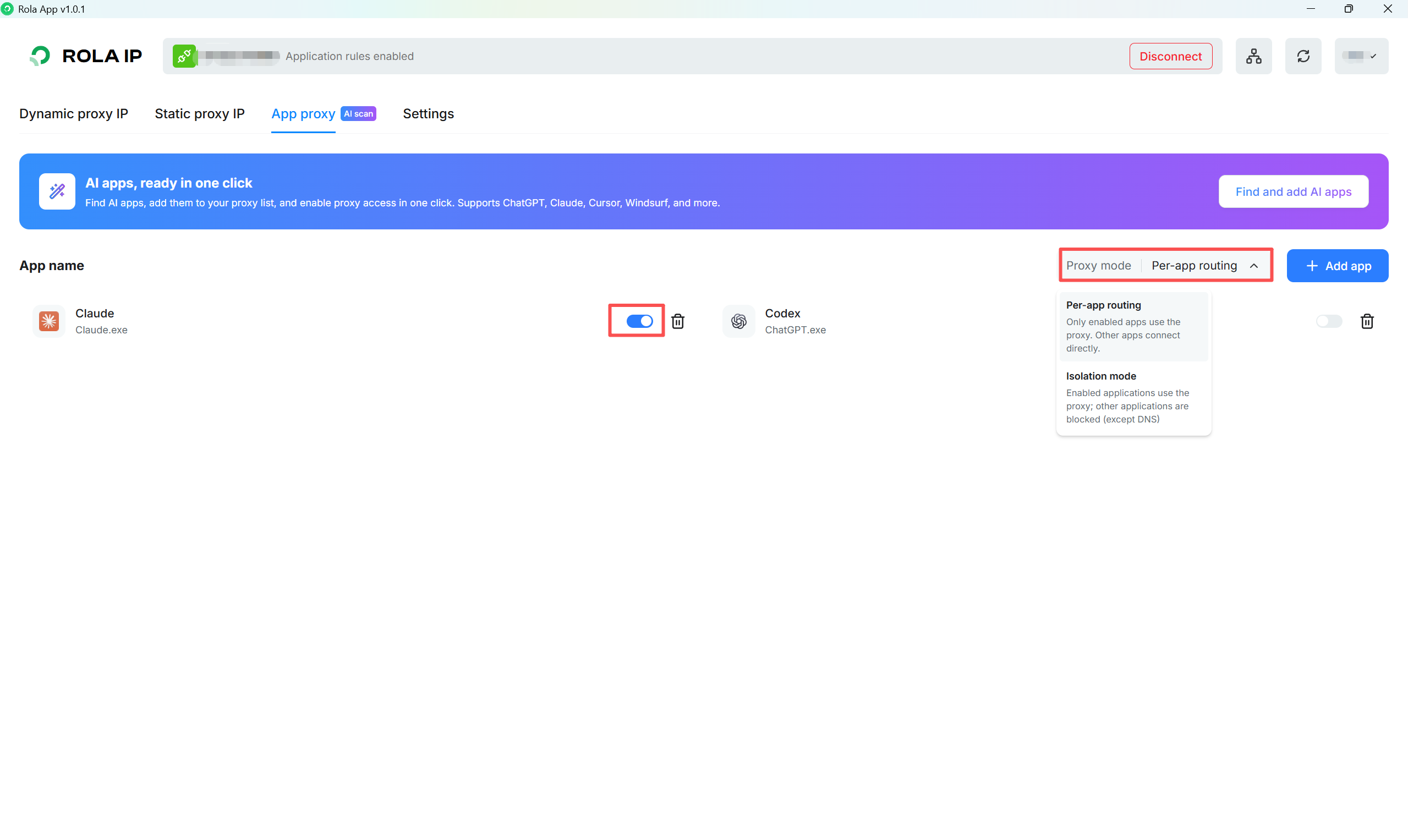
Use Proxy mode to choose Per-app routing or Isolation mode, then enable the switches for the applications that need the proxy. The screenshot shows Claude enabled and Codex disabled. An enabled app switch also needs an active proxy connection; connect an IP in the next step if none is connected.
4. Connect a Proxy IP
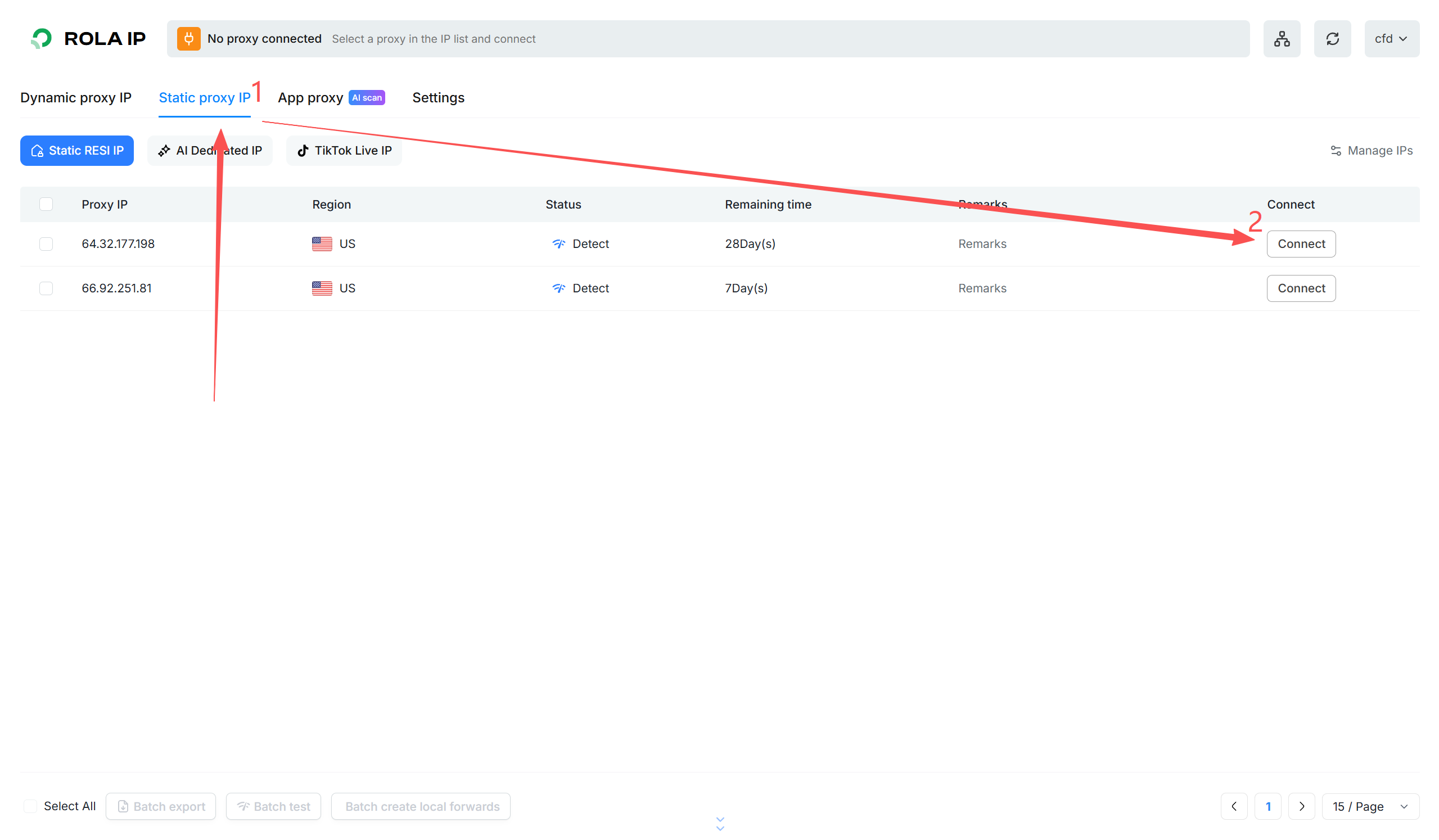
Return to the IP list and click Connect beside the proxy IP you want to use. The example below uses Static proxy IP.
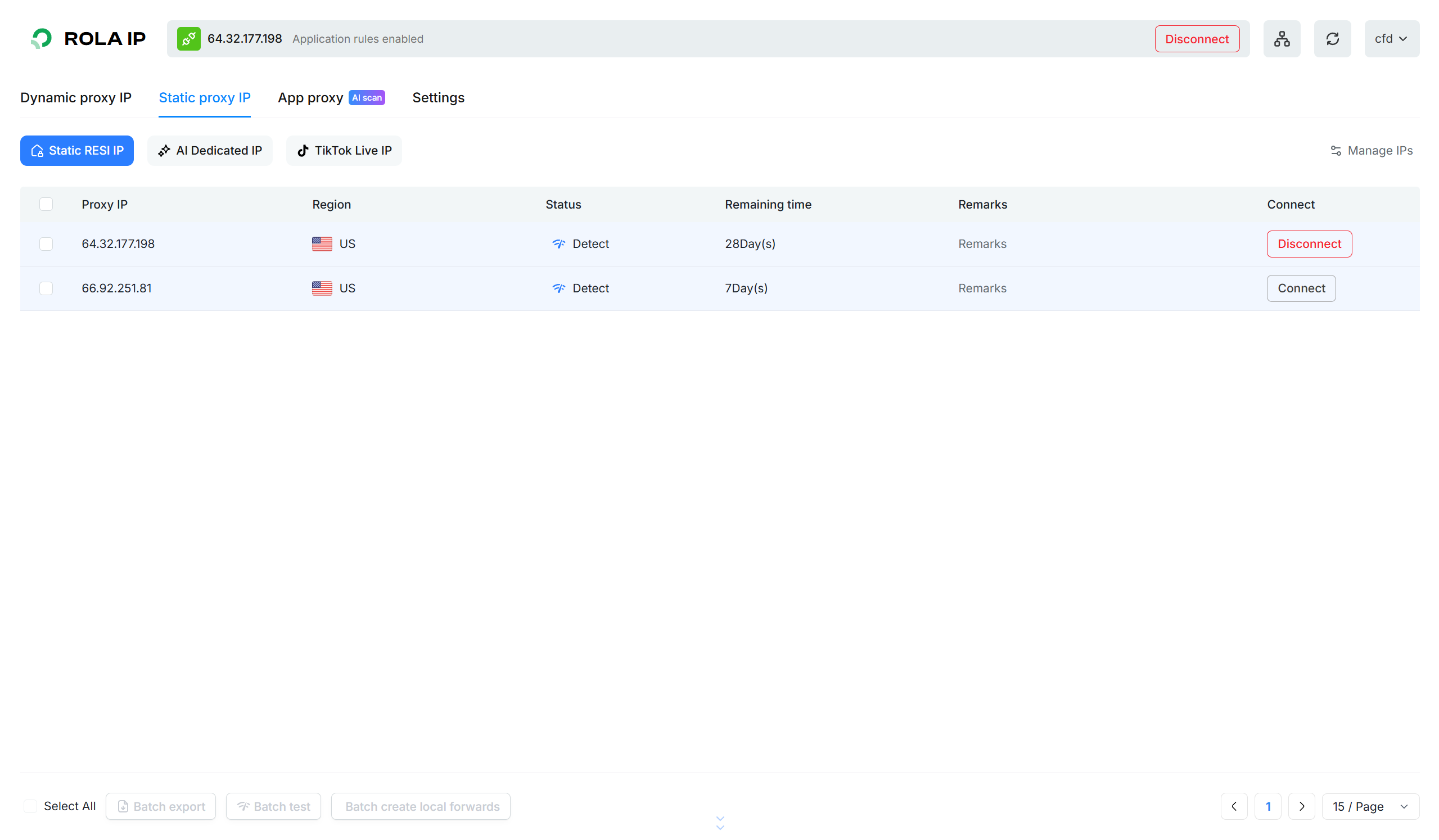
After connecting, the top bar shows the current proxy IP and Application rules enabled, and the button changes to Disconnect. Use the service inside an application whose switch is enabled.
To change the exit, connect another proxy IP from the IP list and verify the connection again inside the application. When finished, disable the app switch or disconnect the proxy. Complete tasks that depend on the proxy before exiting the client.
Verify the Connection
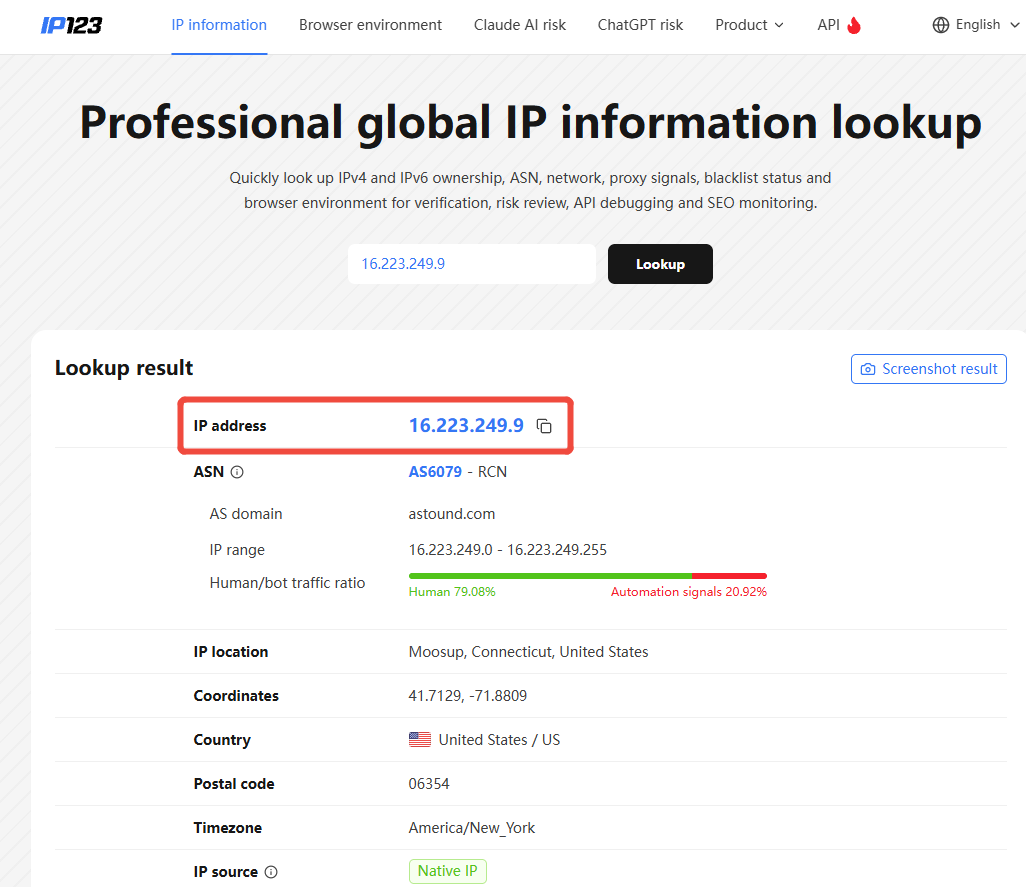
Browsers: add and enable the browser, then open ipinfo.io or ip123.in in that browser and compare the detected IP with the expected proxy exit.
The IP123 example below highlights the IP address field. Compare the site's automatically detected current IP with the proxy currently connected in the client. Looking up a manually entered IP does not verify the connection.
AI tools and other apps: make a request from the enabled application and check its network status or connection test.
Applications you have not added: in app routing mode, these keep using the local network, so an unselected browser may correctly show your local IP. In isolation mode, unauthorized applications are blocked.
Troubleshooting
- Keep Rola App Connect running and check proxy availability and remaining traffic.
- Confirm that the application you are actually using is in the list, its switch is enabled, and the client is connected to the intended proxy IP.
- Check the selected mode; isolation mode may be blocking an unauthorized application.
- Check for interference from other proxy tools or firewall rules.
- If an application needs manually entered HTTP / SOCKS5 settings, use Port Forward.
Sensitive websites and apps restricted in mainland China are outside the supported scope. See the official Rola App Connect page for product details.