
Rola App Connect
Rola App Connect is Rola's desktop client for connecting selected applications through proxy IPs. It supports direct connections from mainland China without requiring you to set up a separate VPN or external proxy tool first.
The client supports Windows 10 / 11. Sign in with the same Rola account you use in the web console to sync your purchased proxy IPs and traffic, then choose the proxy connection for your applications.
Main Features
- App routing: selected applications use a proxy IP while other applications keep their local network connection.
- Isolation mode: only enabled applications can connect through the proxy; other unauthorized applications are blocked from accessing the network.
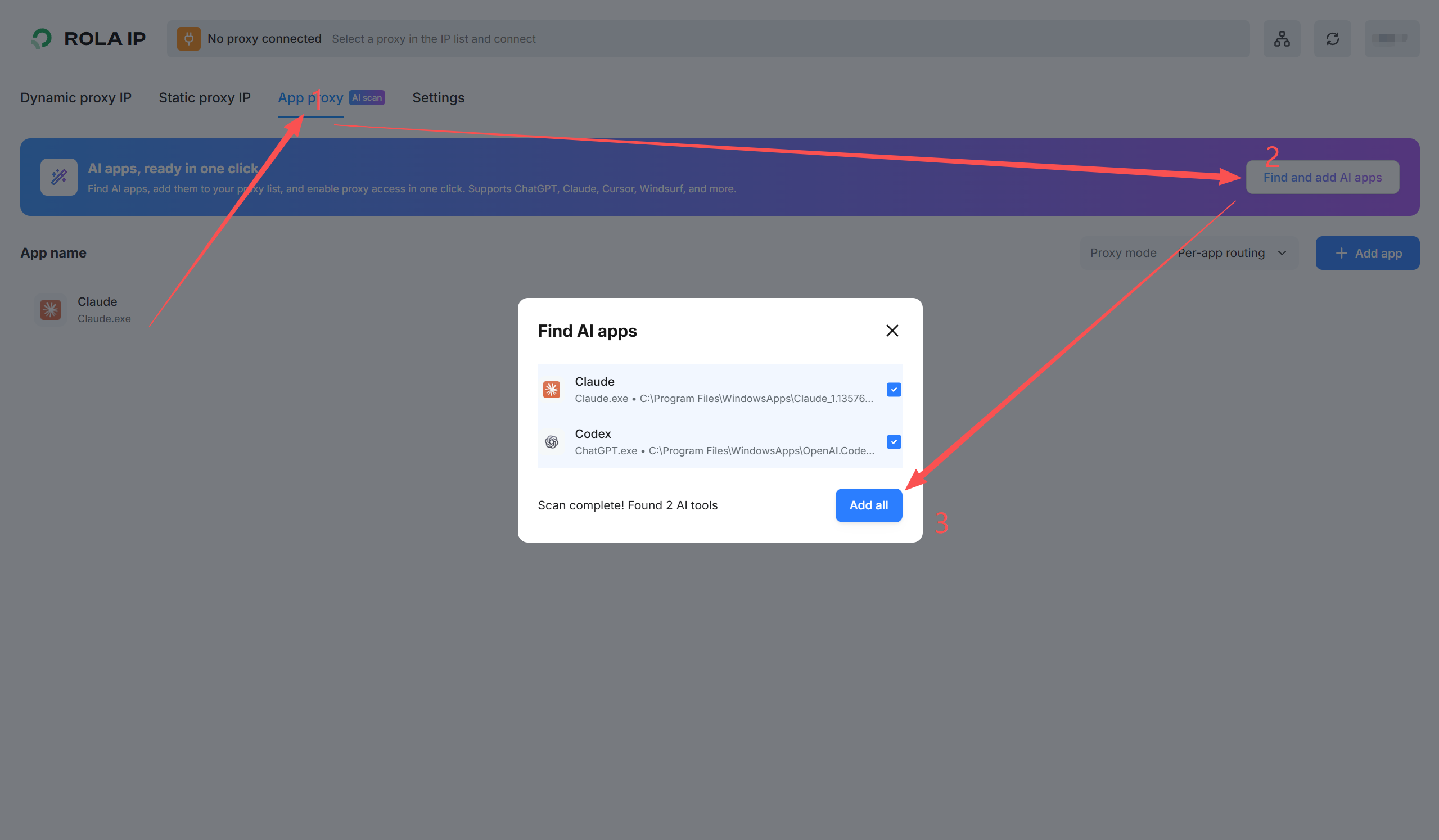
- AI tool detection: detect installed tools such as ChatGPT, Claude Desktop, Cursor, and Windsurf and add them to the application list. You can also add applications manually.
- Port forwarding: map proxy IPs to local ports for anti-detect browsers, scripts, and other applications that support HTTP or SOCKS5.
Use Cases and Scope
Supported scenarios extend beyond cross-border e-commerce to AI tools, office collaboration, development, data collection, and automation. Choose a proxy connection or local direct connection according to each application's needs.
Scope of use
Sensitive websites and apps restricted in mainland China are outside the supported scope. Direct connectivity from mainland China means the client can reach the proxy service directly; it does not provide access to those restricted services.
Get Started
Download and install Rola App Connect.
Sign in with your Rola account and check that usable proxy IPs and traffic have synced.
Add the applications you want to connect, manually or with AI tool detection.
Choose per-app routing or isolation mode and enable the app switches. Then select a proxy IP in the IP list, click Connect, and verify the connection inside the selected application.
The client can keep running in the system tray. Exiting the client interrupts the proxy connections and local forwards it provides.
Choose a Connection Method
| App Proxy | Port Forward | |
|---|---|---|
| Setup | Add an application, choose its proxy IP and network mode | Create a local forward and enter its address and port in the third-party app |
| Scope | Applications managed by the selected network mode | Applications or scripts configured to use the local forward |
| Typical uses | AI tools, browsers, and office collaboration | Anti-detect browsers, automation scripts, and apps with manual proxy settings |
| Guide | App Proxy | Port Forward |
Isolation mode affects other applications
Isolation mode blocks unauthorized applications, including office, messaging, or background software you may still need. Review the application list before enabling it. Use app routing when other software should retain its local connection.