
Port Forward
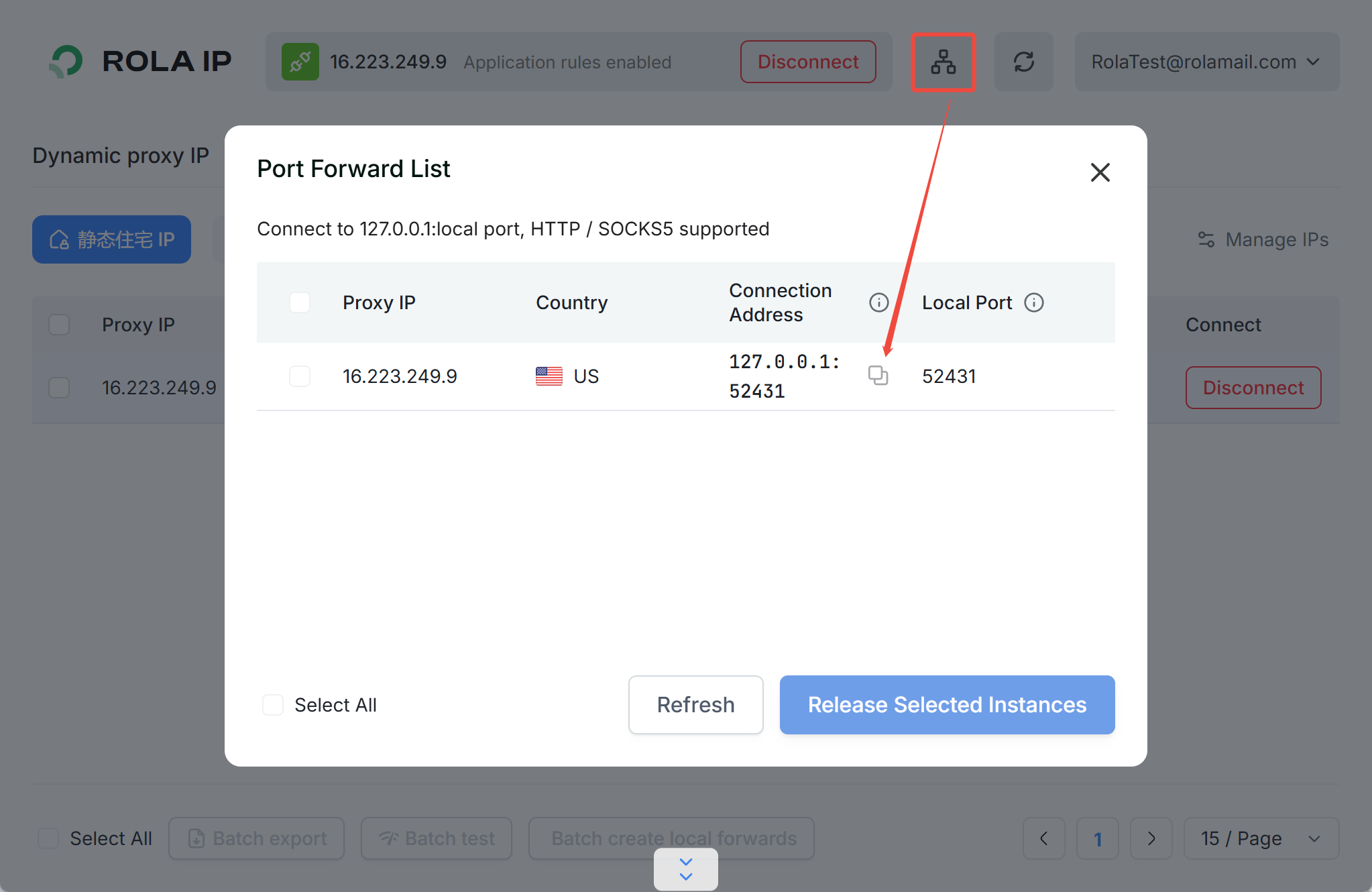
Rola App Connect retains port forwarding. It maps a proxy IP to a local address and port such as 127.0.0.1:52431. Third-party applications connect through this local endpoint without entering the remote proxy username or password again.
Both HTTP and SOCKS5 are supported for anti-detect browsers, automation scripts, and other applications with proxy settings. Connections from mainland China work directly without first setting up a separate VPN or external proxy tool.
Step 1: Create a Local Forward
Download and install Rola App Connect, then sign in with your Rola account.
Select the checkbox beside the proxy IP to forward, then click Batch create local forwards at the bottom of the IP list.
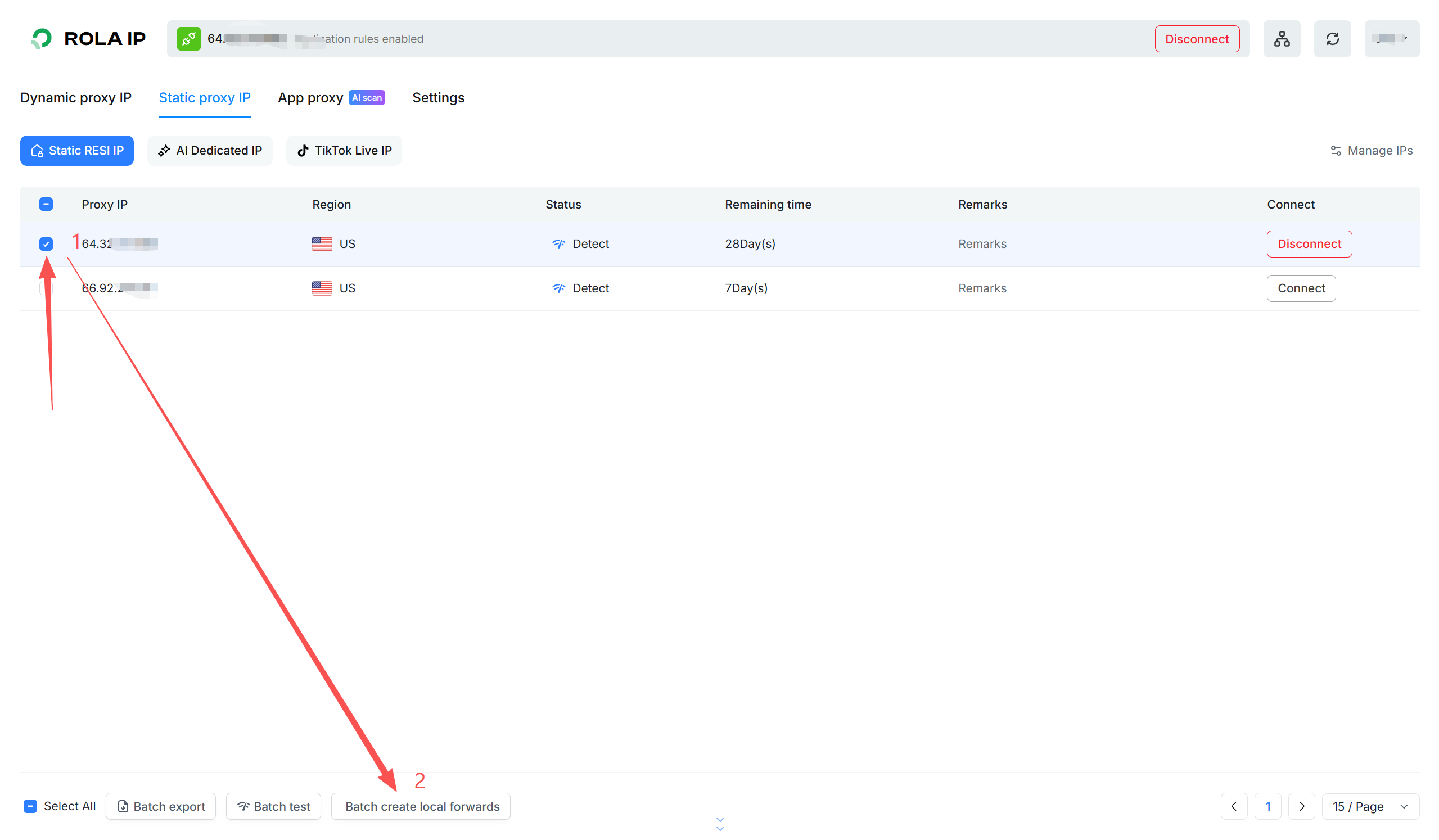
Click the port forwarding icon in the upper-right corner to open Port Forward List. Find the connection address and local port for the selected IP. Use the port actually assigned by the client.
Step 2: Configure the Third-Party App
Enter the following in the application's proxy settings:
| Setting | Value |
|---|---|
| Protocol | SOCKS5 or HTTP |
| Host | 127.0.0.1 |
| Port | The corresponding local port from the list, for example 52431 |
| Username and password | Leave empty |
This local address is the application's connection endpoint, not the proxy exit IP. Rola App Connect receives requests on the local port and forwards them through the selected proxy. To use different exits for different applications, configure the corresponding port mapping in each one.
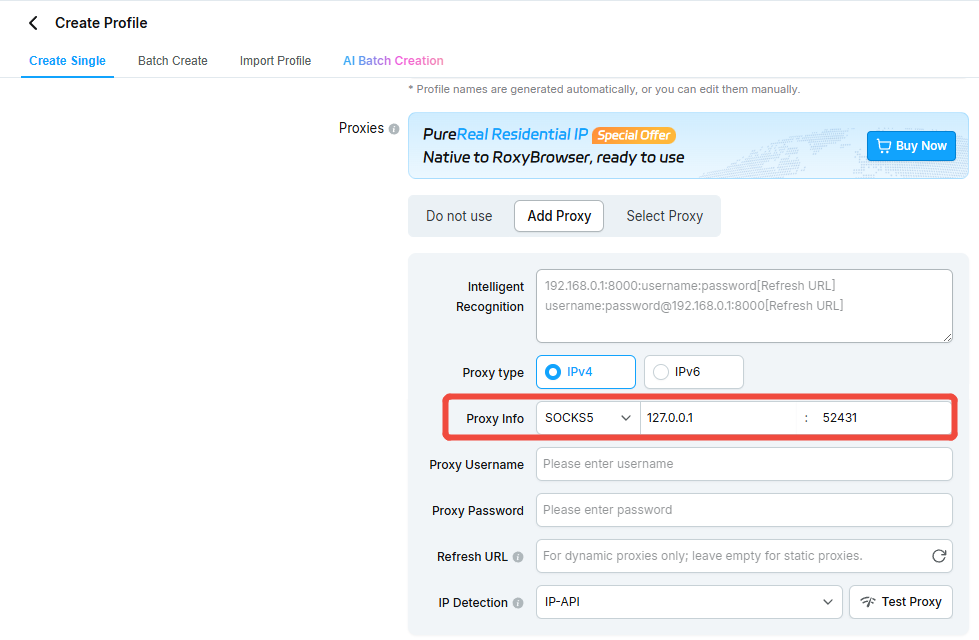
For example, in RoxyBrowser, open Create Profile and choose Add Proxy. Set the protocol to SOCKS5, the host to 127.0.0.1, and the port to 52431 from the forwarding list. Leave the username and password empty. This port is an example matching the screenshots; use the port actually assigned by your client.
Step 3: Verify the Connection
After entering the connection details, run the application's connection test, or save the settings and make a request. Check that the exit IP and location match the intended proxy. Verification must use the application configured with this local endpoint.
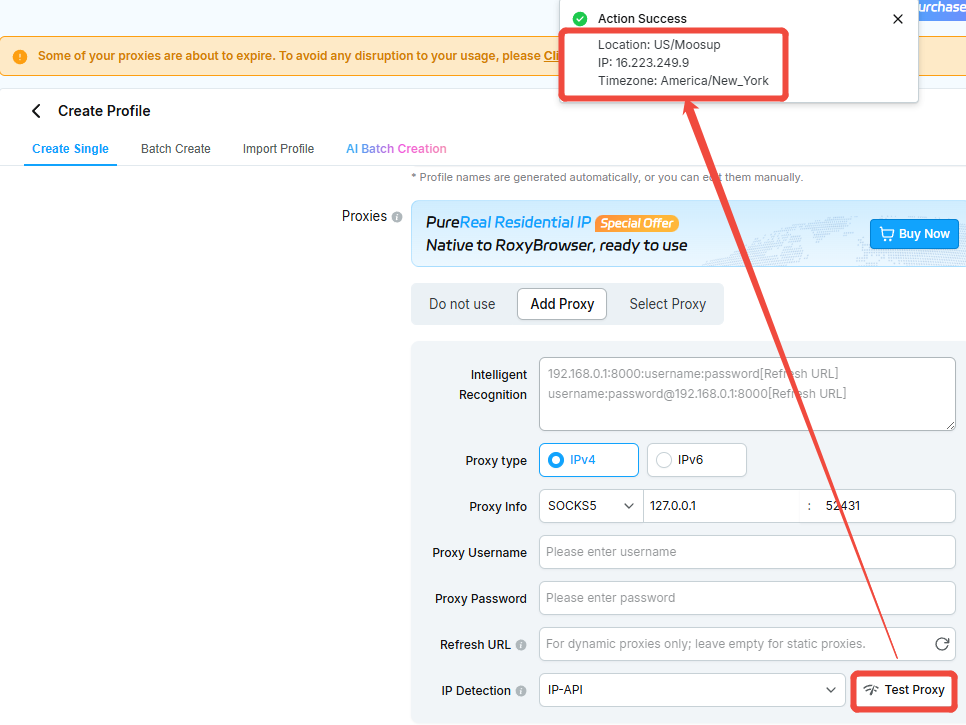
In RoxyBrowser, click Test Proxy. The example below shows Action Success and exit IP 16.223.249.9, matching the proxy IP in the forwarding list above. Confirm the result, then save the settings.
Usage Notes
- Keep Rola App Connect running. It can run in the system tray; exiting the client interrupts local forwarding.
- If the connection fails, check proxy availability, traffic, the local port, the protocol, and the client status.
- In isolation mode, ensure the third-party application is authorized to access the network.
- Sensitive websites and apps restricted in mainland China are outside the supported scope.
To manage an application's proxy connection directly in the client, see App Proxy.