
System Proxy
With System Proxy on, your browser and any software that supports the system proxy automatically go online through the proxy IP you pick — no need to configure them one by one.
💡 Note
System Proxy applies to browsers and other software that follow the system proxy setting. A few apps that ignore the system proxy aren't affected — for those, use Port Forward instead.
⚠️ Before you turn it on
System Proxy changes your computer's global proxy settings. Before enabling it, close any other software that also changes the system proxy (such as VPN / circumvention tools). Otherwise both will fight over the settings, which can break your connection or stop the proxy from working.
Steps
- Open Rola Connect and sign in, then find the IP you want to use in the proxy list.
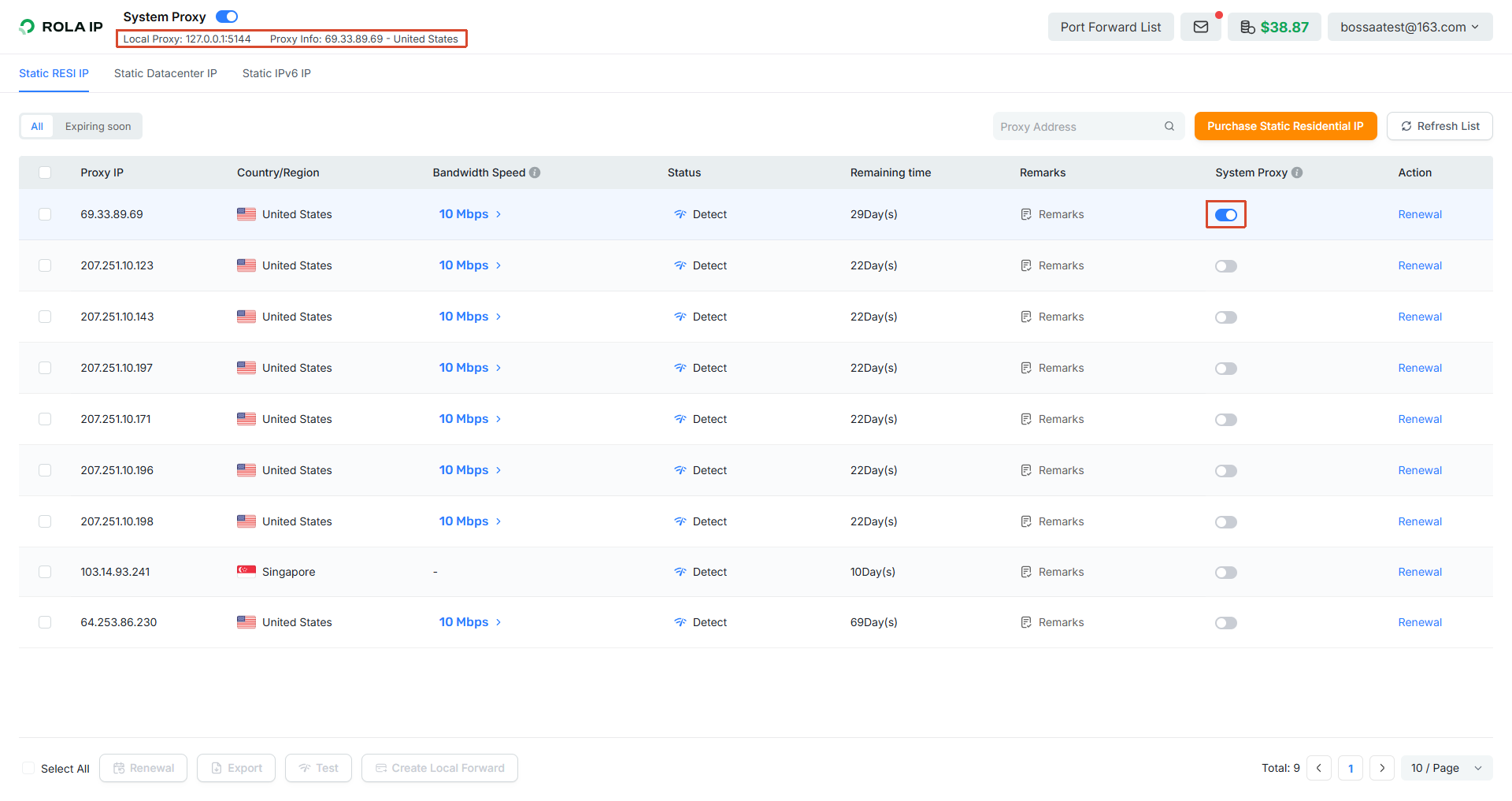
- In the "System Proxy" column on the right of that IP, turn the switch on.
- A message "System proxy enabled" appears at the top, showing the local proxy address (e.g.
127.0.0.1:5144) and the current exit IP.
💡 Tip
- Only one IP can be the system proxy at a time. To switch, just turn on the switch for another IP.
- To stop, turn the switch off and your computer goes back to a direct connection.
Check That It Works
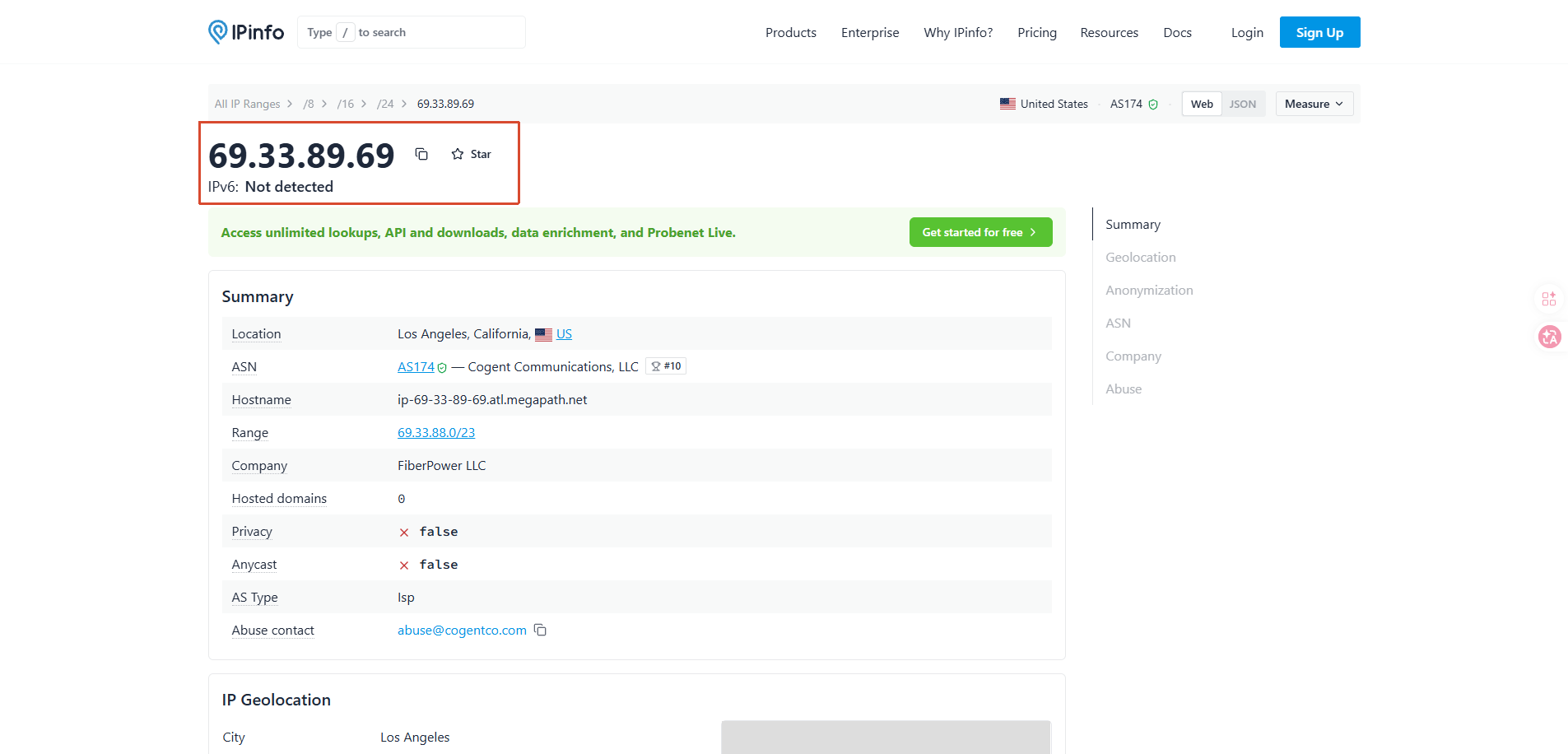
Open a browser and visit https://ipinfo.io (or https://ip123.in) to see the detected IP and location.
If it matches the proxy IP shown in the client, the system proxy is working.
⚠️ Note
If it still shows your local IP, first make sure the System Proxy switch is on, then refresh the detection page.