
Rotating Datacenter
Rotating datacenter proxies come from IDC or cloud provider networks. They do not simulate residential or mobile users, but they are usually faster, cheaper, and better suited for large-scale tasks with lower IP reputation requirements.
Best For
- Data collection from low-risk websites
- Bulk access, API checks, and availability tests
- Cost-sensitive tasks that do not require a real-user network
- Automation that does not depend on long-term account stability
Characteristics
- Cost and speed friendly: suitable for high-volume access.
- Easier to identify as server traffic: some target sites may classify it as datacenter traffic.
- Country-level control: currently supports
countrytargeting only. State-level and city-level targeting are not supported. - New IP for every request: append
-f-1so every request uses a new IP. - Good for stateless tasks: best for tasks that do not rely on login state or long account sessions.
Configuration
Use the proxy details generated in the dashboard.
Account-name marker
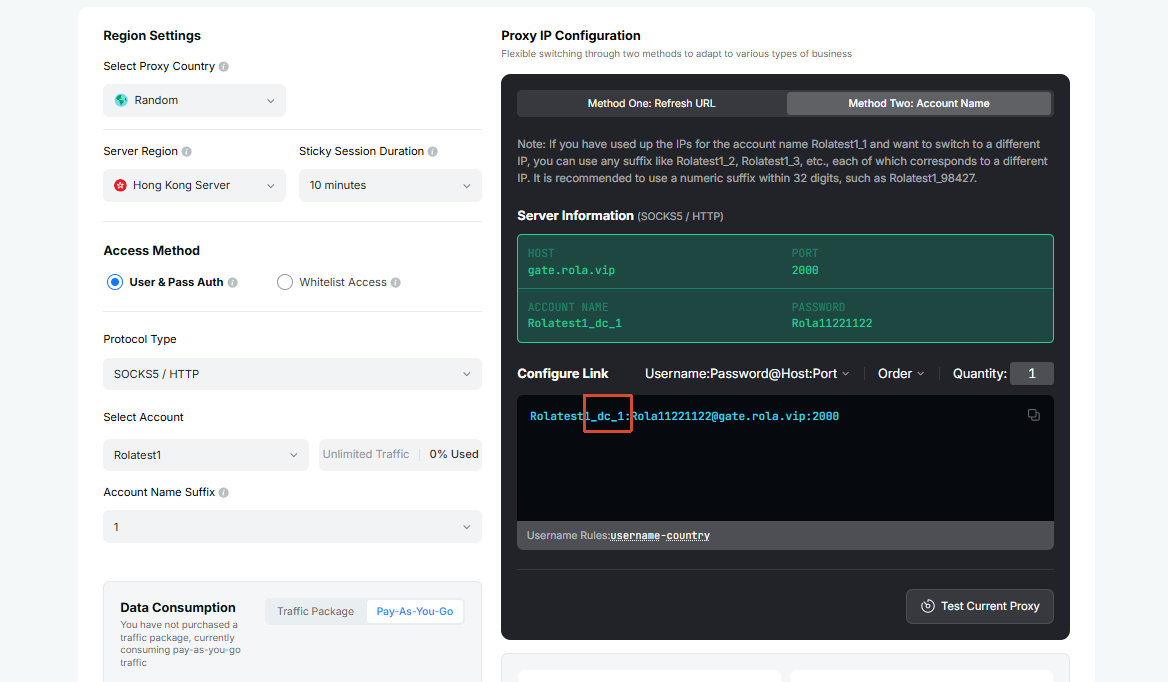
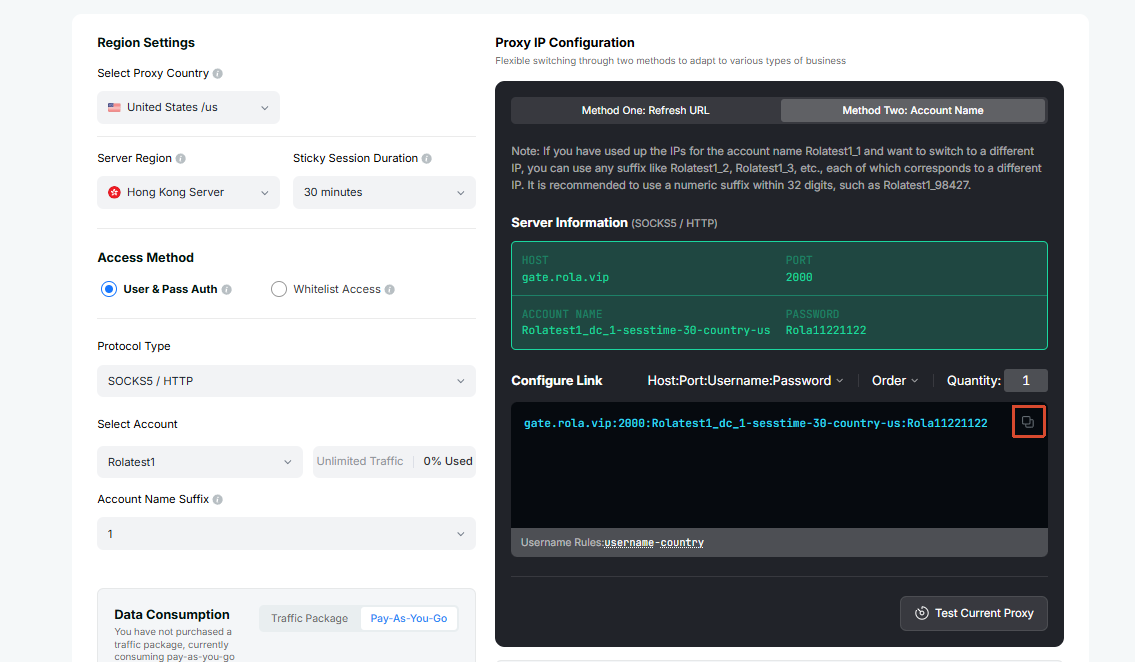
Rotating Datacenter account names need a _dc marker, placed before the sessionid. So where Residential uses test / test_1, Datacenter uses test_dc / test_dc_1.
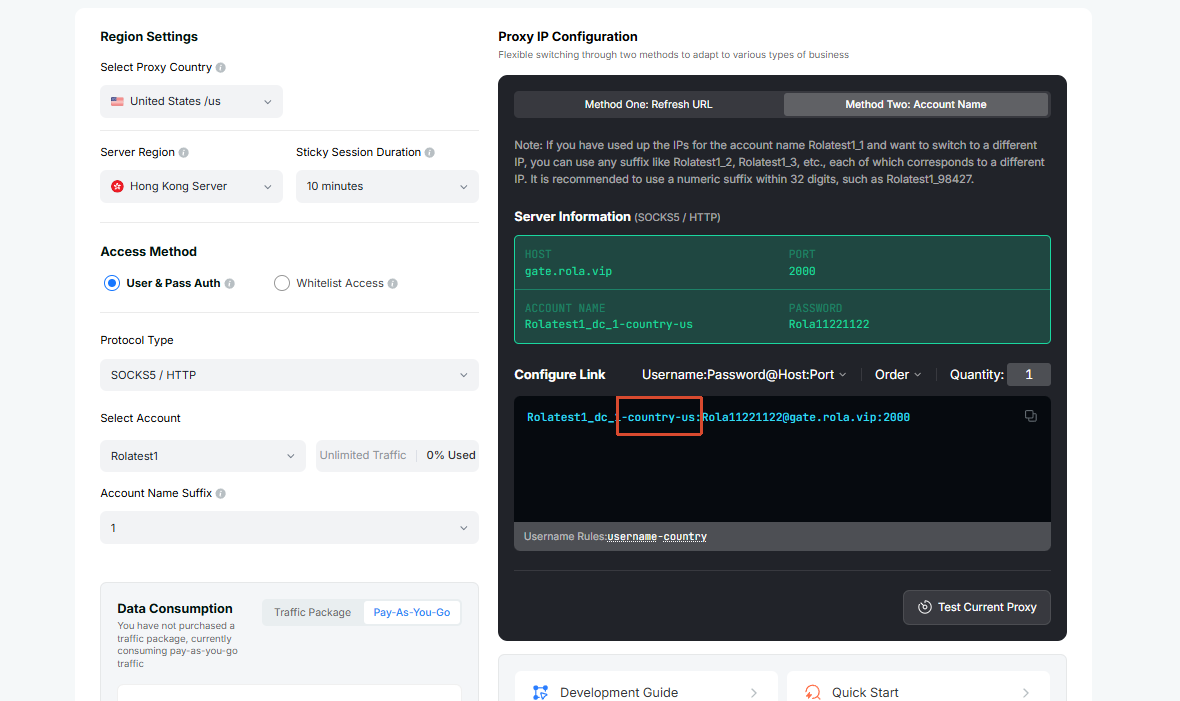
For country-level location control, append country after the account name:
test_dc-country-us
test_dc-country-us-f-1
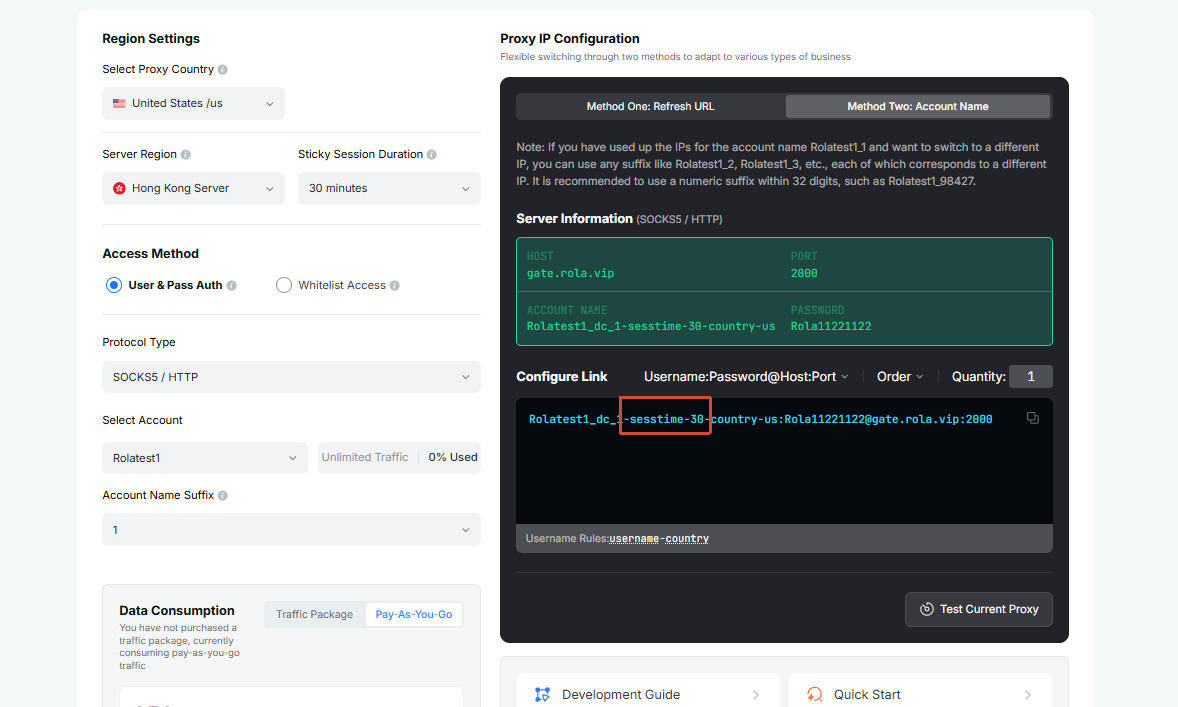
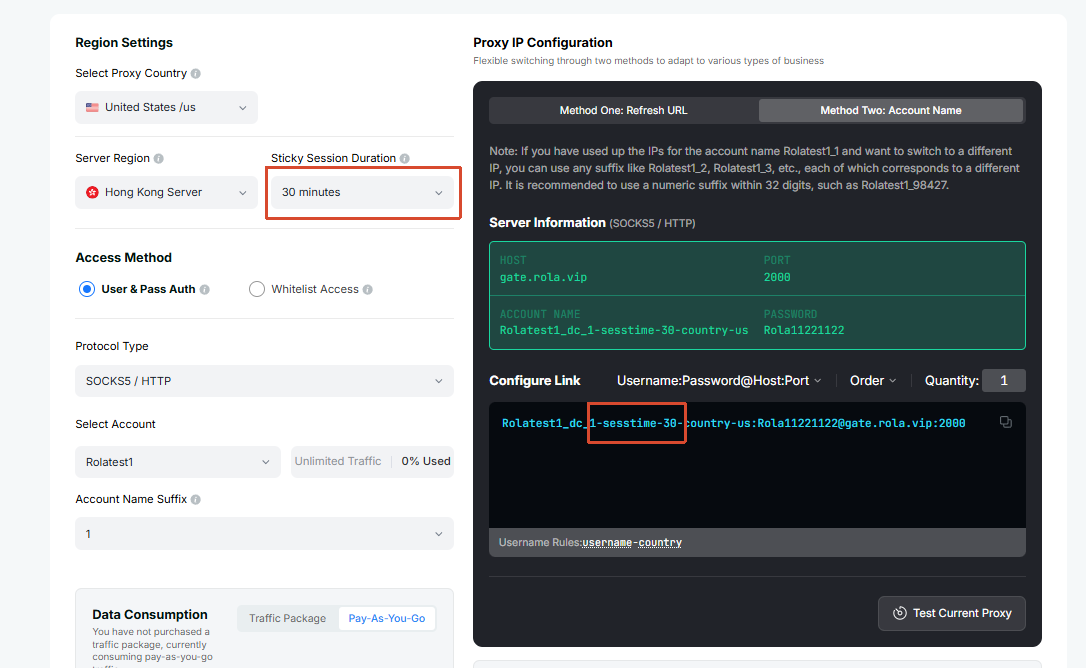
To run multiple short workflows, use different underscore session IDs for different tasks. If one workflow needs to keep its session for 1-120 minutes, add sessiontime:
test_dc_1-country-us-sessiontime-5How the settings page maps to the generated account name:
① Account name carries the _dc marker (datacenter network):
② Append country to target a country:
③ Append sessiontime to keep the same IP for a period:
Configuration Flow
Open Datacenter Settings.
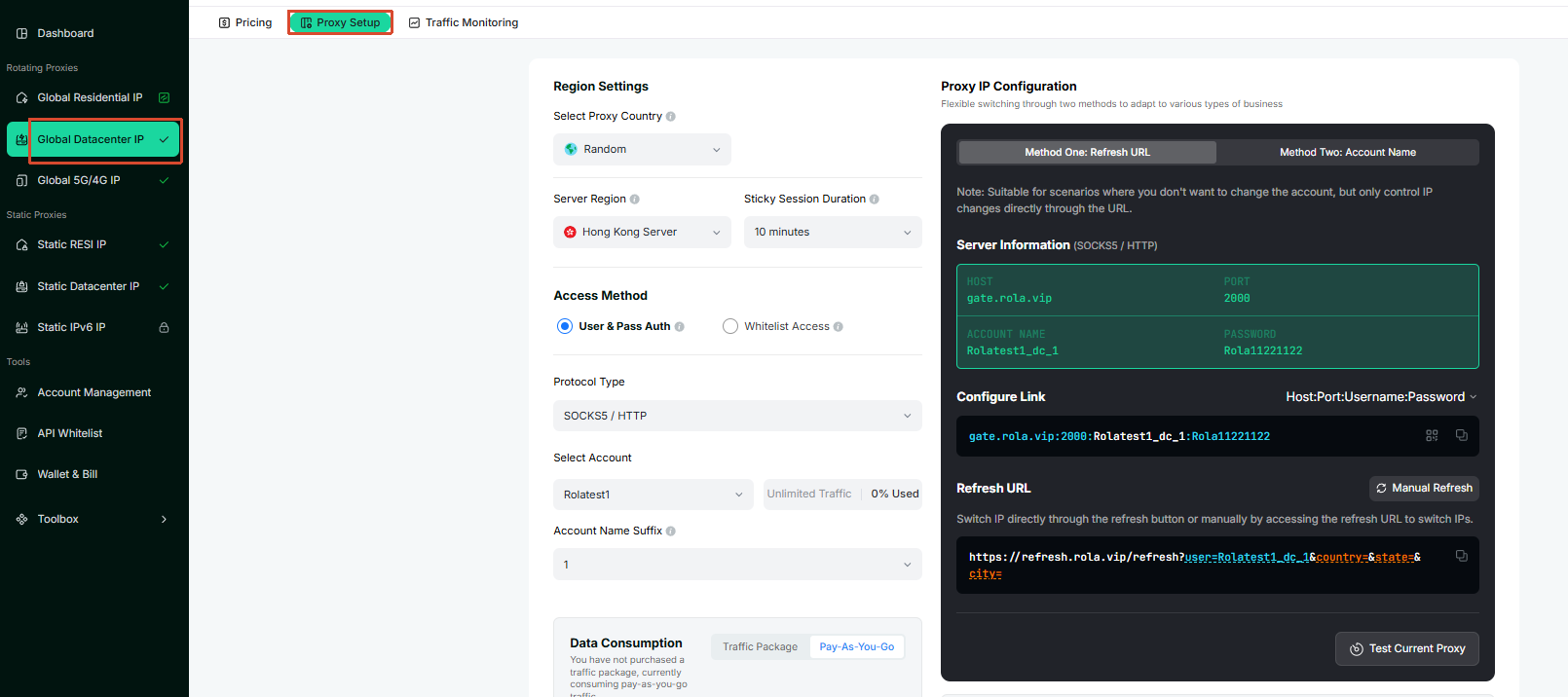
Select or enter the account name on the configuration page.
For low-risk bulk tasks, start with the basic account name carrying the
_dcmarker, such astest_dc.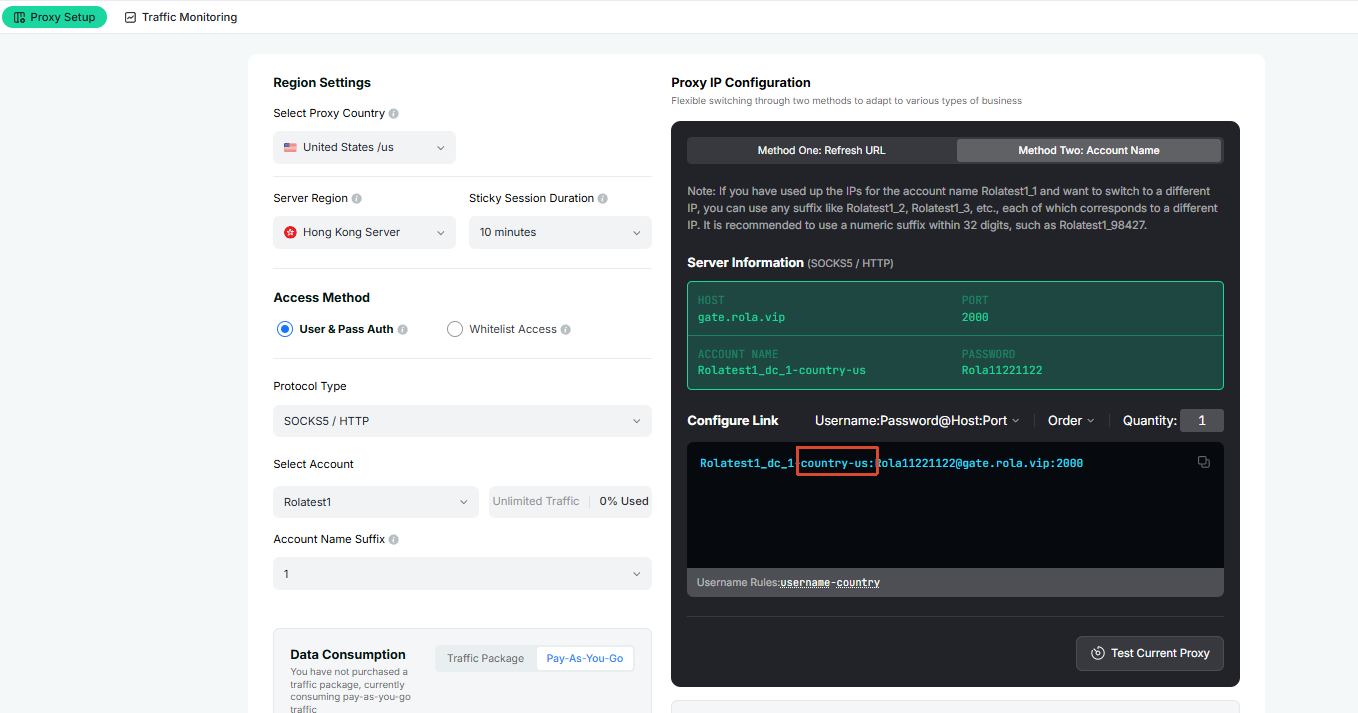
For country-level targeting, append
country, such astest_dc-country-us. Rotating Datacenter currently does not supportstateorcity.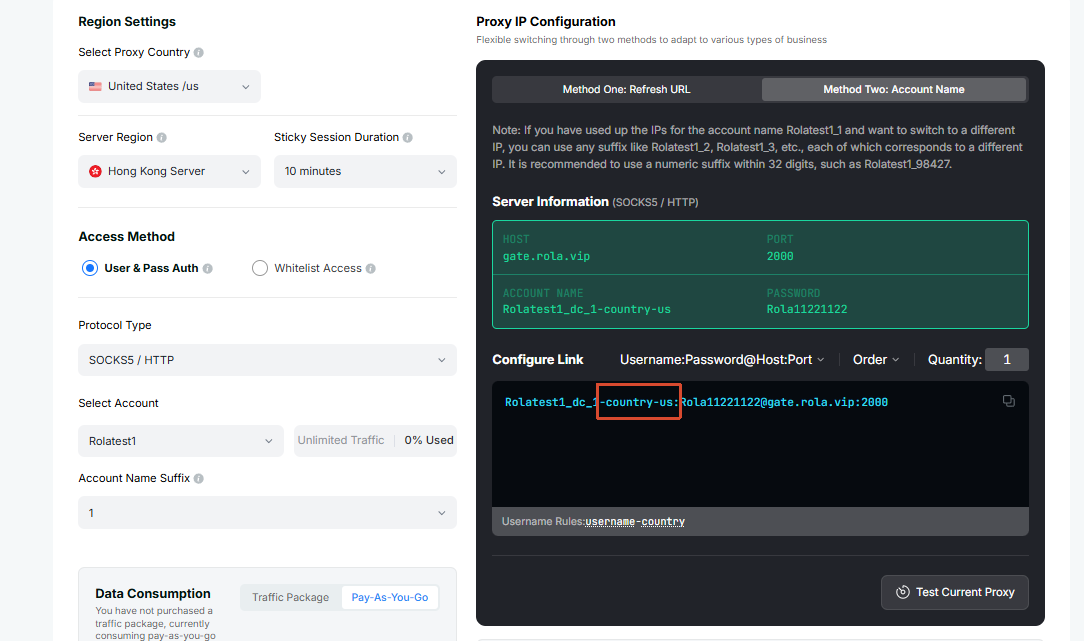
For multiple independent exits, use separate session IDs such as
test_dc_1andtest_dc_2. If one exit needs to stay stable for a short period, addsessiontime, such astest_dc_1-country-us-sessiontime-5. The supported range is 1-120 minutes.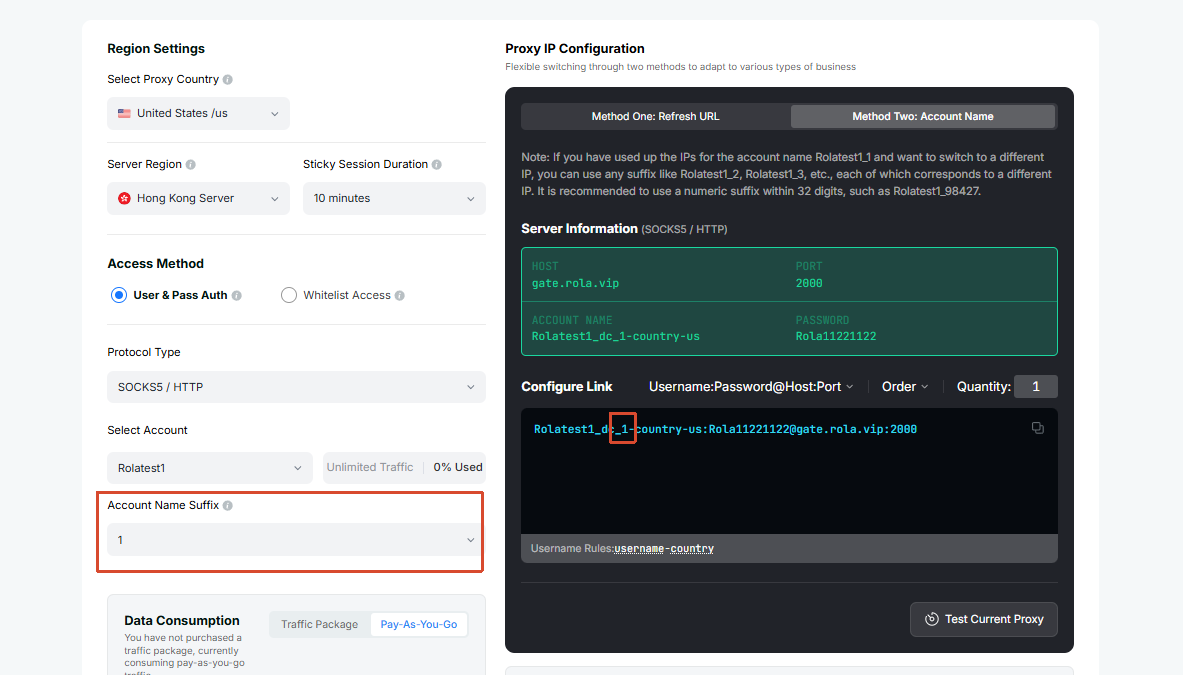
If every request should use a new IP, append
-f-1, such astest_dc-country-us-f-1.Copy the generated host, port, username, and password into your client or program.
If the connection fails or the target site restricts datacenter IPs, first check the account, password, whitelist, and
countryparameter. If it is still unstable, switch to Rotating Residential or Mobile IP.
Send a Request
After getting the generated username, password, proxy domain, and port from the dashboard, send a test request with curl to confirm that the rotating datacenter proxy is connected.
SOCKS5 proxy:
curl -x socks5h://username:password@proxy-domain:port http://ip123.in/ip.jsonHTTP proxy:
curl -x http://username:password@proxy-domain:port http://ip123.in/ip.jsonThe response will use a structure similar to the example below. The actual IP, location, and organization depend on the current exit. city and region in the response are detected IP details from the lookup service; they do not mean Rotating Datacenter supports city-level targeting.
{
  "ip": "47.239.91.123",
  "city": "hong kong",
  "organization": "Alibaba (US) Technology Co., Ltd.",
  "asn": 45102,
  "network": "47.238.0.0/15",
  "country": "Hong Kong",
  "country_code": "HK",
  "continent": "Asia",
  "continent_code": "AS",
  "postal": "-",
  "latitude": "22.2842",
  "longitude": "114.1759",
  "timezone": "Asia/Hong_Kong",
  "metro_code": null,
  "region_code": null,
  "region_cn": "",
  "region": "Hong Kong"
}
Notes
- Rotating datacenter is better for low-risk tasks. It is not recommended for high-trust login, account warm-up, or payment flows.
- For bulk access, API checks, and other stateless requests, use
-f-1so every request uses a new IP. If a short workflow needs to keep one exit, usesessionidandsessiontime. - If the target site strongly restricts datacenter traffic, switch to Rotating Residential or Mobile IP.
- Rotating Datacenter currently supports country-level targeting only, and does not support
stateorcity. If resources are insufficient for a selected country, try without a country parameter or switch to another network type.
WARNING
Connectivity can be affected by local network conditions, target website rules, and regional resource availability. If a connection fails, check the dashboard proxy details, whitelist settings, and username parameters first.